
How Do I Manage The Features In My Spaces?
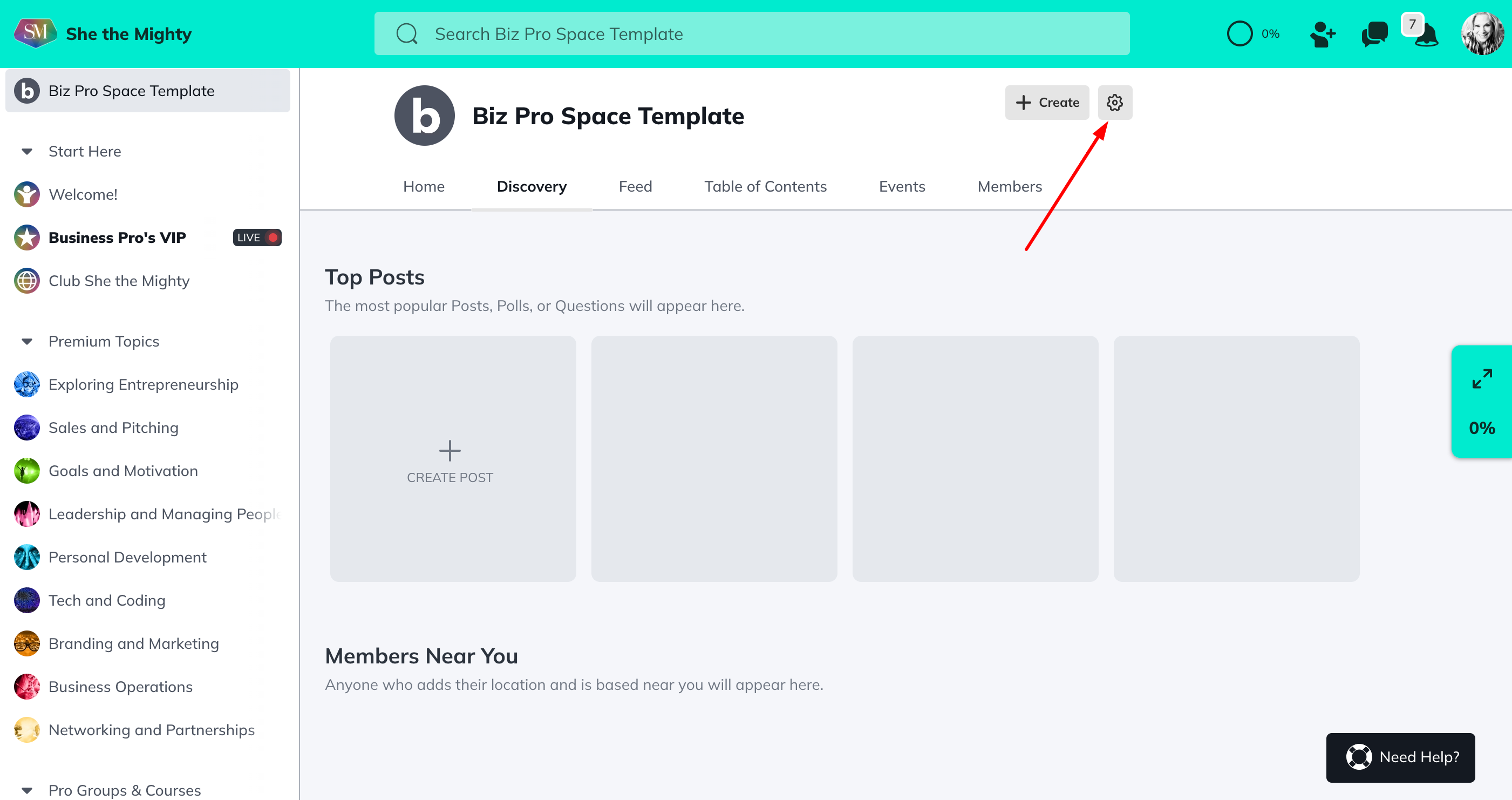
When you first start building your Spaces, each of them has been pre-loaded with a set of features for you. You can add more features, remove features, and only have 1 feature active – whatever you prefer. To change or edit the features that are active in your space, you will want to go to the gear icon in the upper right corner of the Space > Features
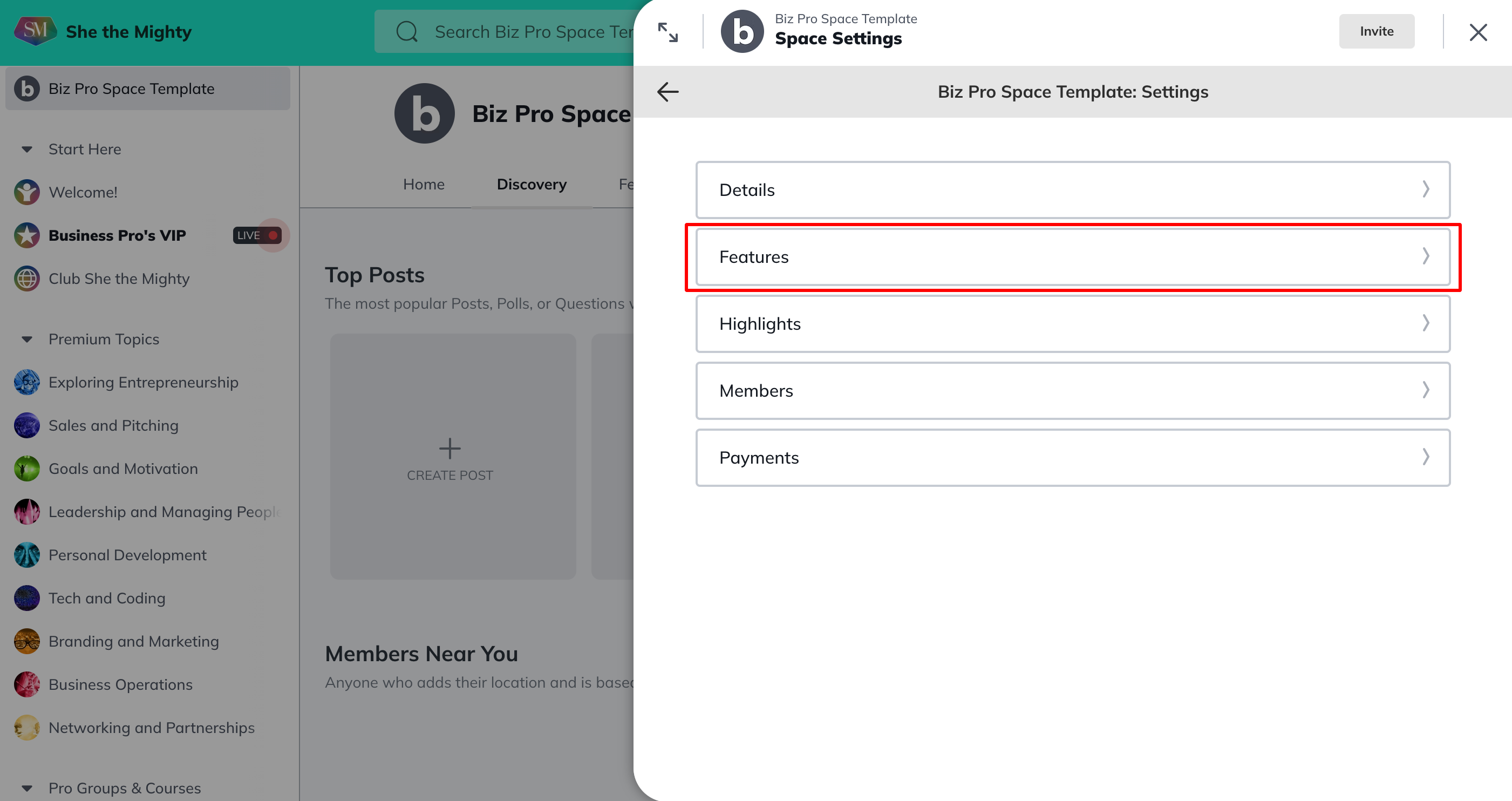
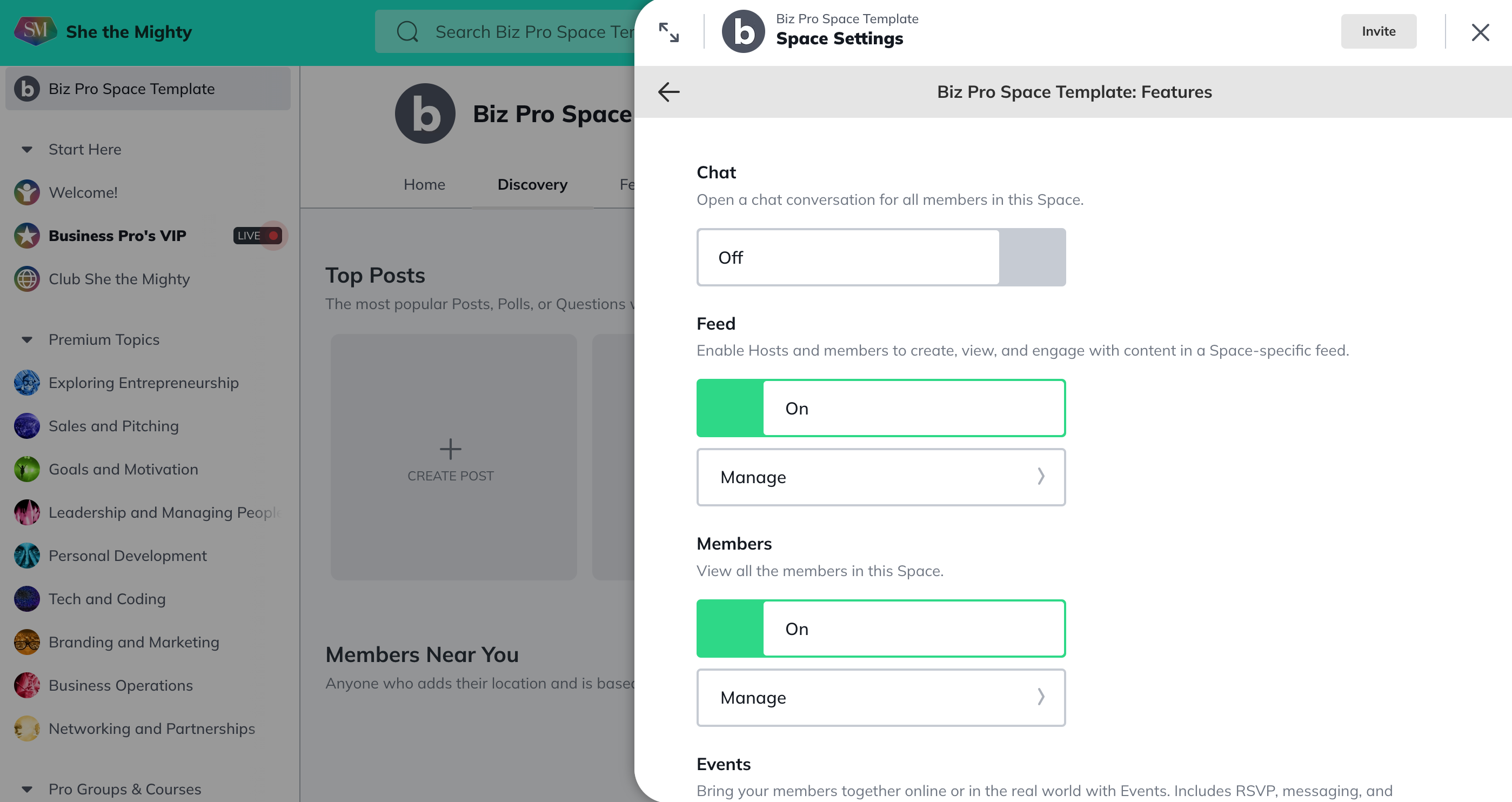
From there, you can toggle on what features you want in a Space.
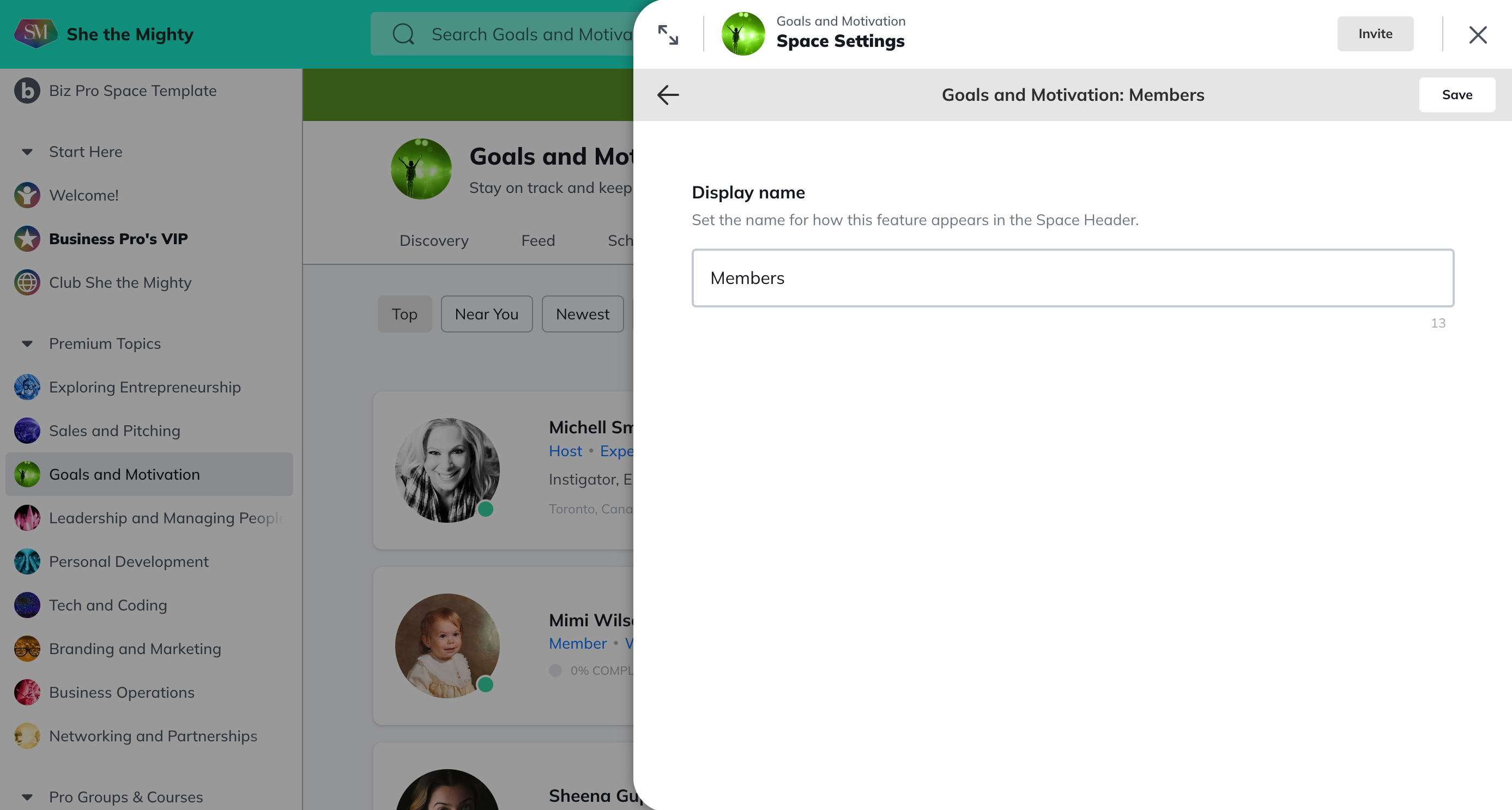
A Space can have one feature or any combination of them! You can rename, reorder and toggle on and off any feature available in a Space. Each feature name can be up to 20 characters long.
Here Are The Features:
Chat: An open chat conversation for all members in this Space where they can upload emojis, GIFs and more!
In this feature, you and your members will receive a pop-up notification on web and mobile when there’s a new Space chat message.
You and your members can turn off this notification for a specific Space by selecting the three dot menu for the Space and choosing Mute Chat. Or you can toggle off all Space Chat Messages by going to Personal Settings > Notifications > Space Chat Messages.
Feed: This enables Hosts and members to create, view, and engage with content in a Space-specific feed, like the Activity Feed today!
-
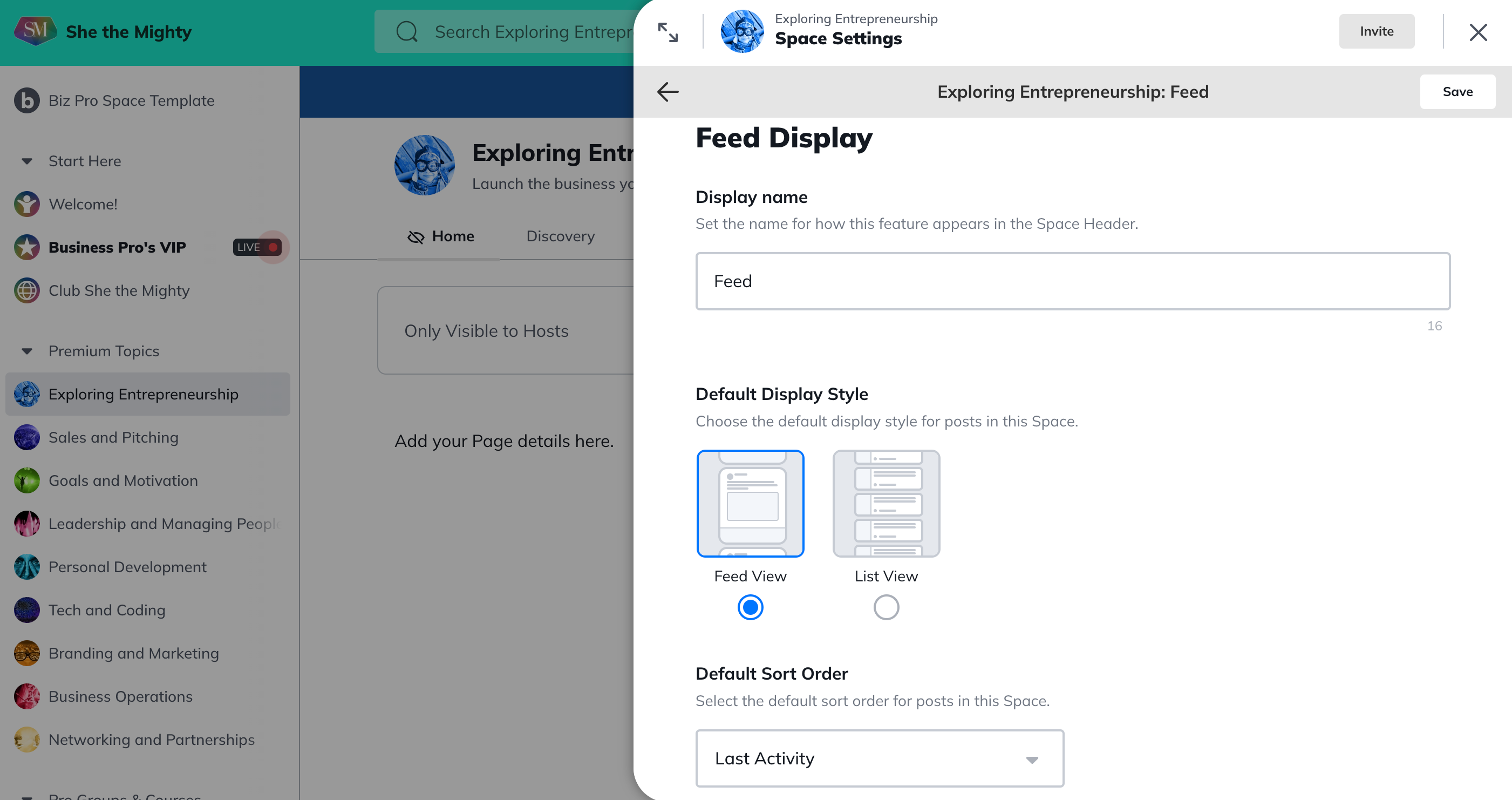
With the Feed, you can rename, select the Default Display Style, set the Default Sort Order, turn on and off certain types of content and moderate who can post that type of content (ie: Everyone, Only Hosts and Moderators)
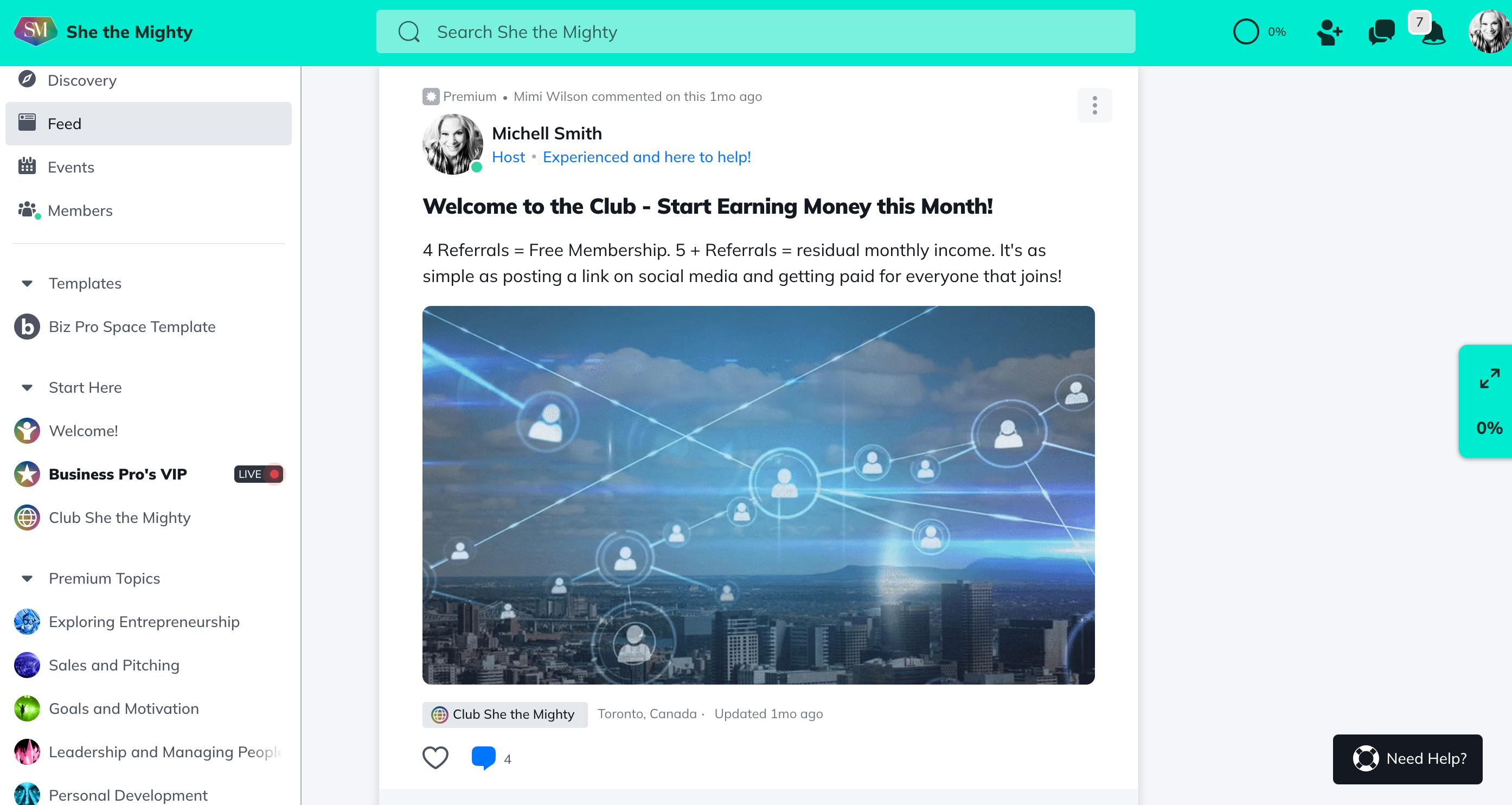
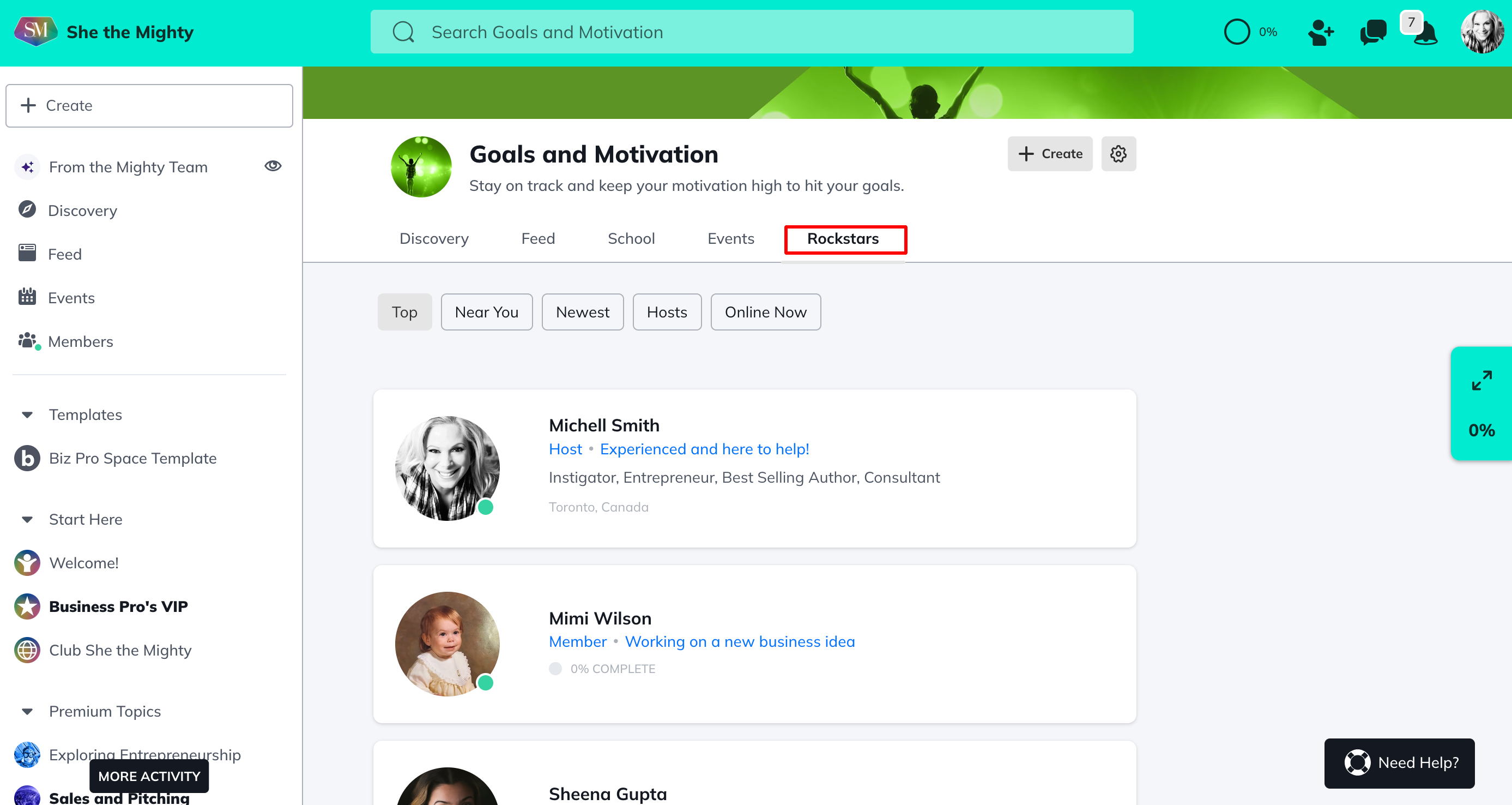
Members: A feature that you can rename and will allow you to view all the members in the Space.
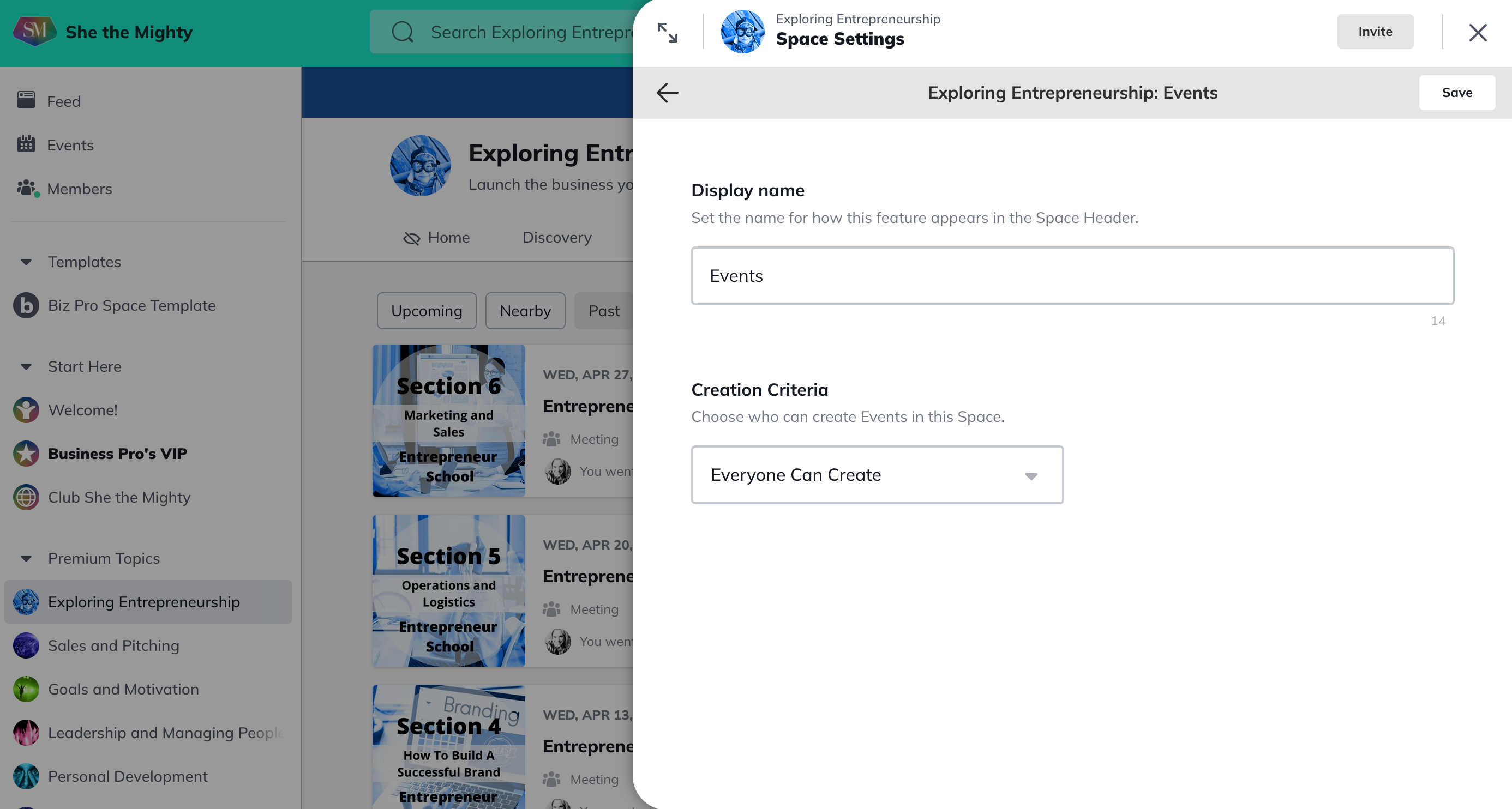
Events: You can activate Events in your Spaces that include RSVPs, and messaging. Events in a Space will appear in the Feed feature, if it’s enabled, and will appear in the Global Feed (only to members that have access to the Space the event is in, or if it’s a public event in any Space).
You will also be able to decide who can create Events: Everyone or only Hosts and Moderators.
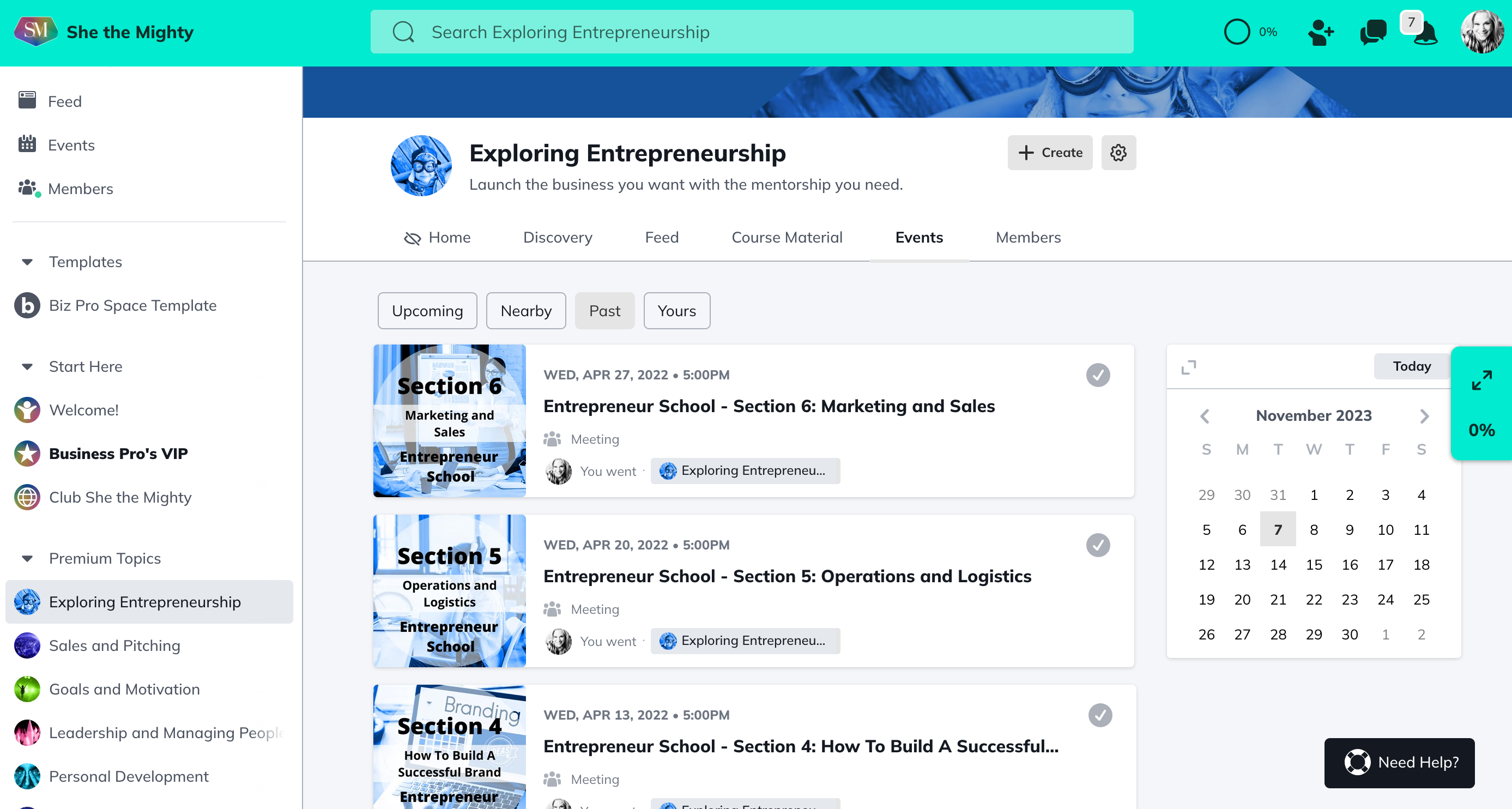
Single Event: This is a feature that creates a single event page.
Discovery: Is a visual display for the Space to highlight key content, members, and more. With Discovery, you can show, hide or reorder (by dragging and dropping) up to 8 sections that you want to appear.
The sections you can feature in Discovery are:
-
Featured
-
Top Posts
-
Upcoming Events
-
Top Members
-
Members Near You
-
Events Near You
-
Members in the same Member Category
-
Welcome
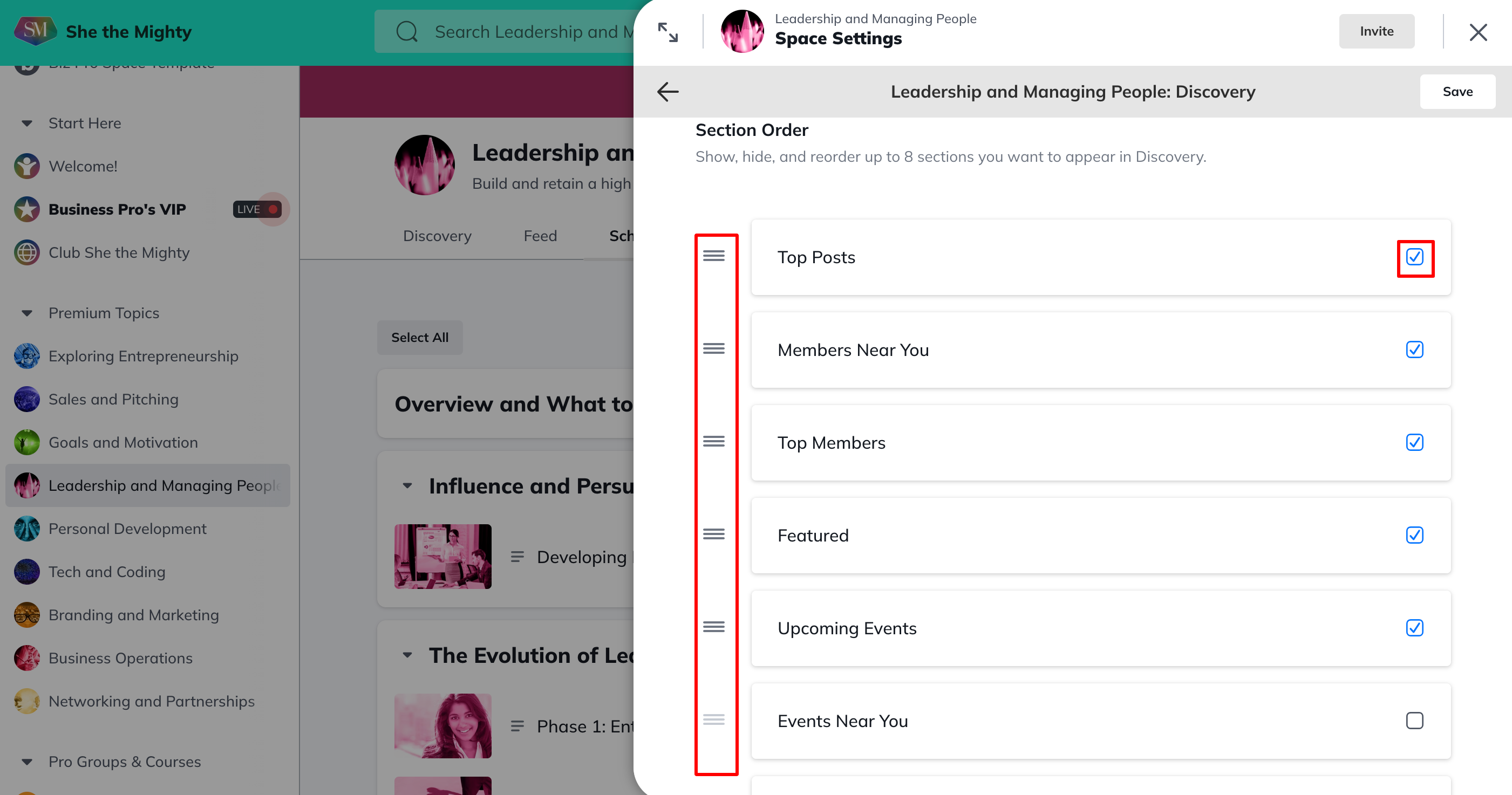
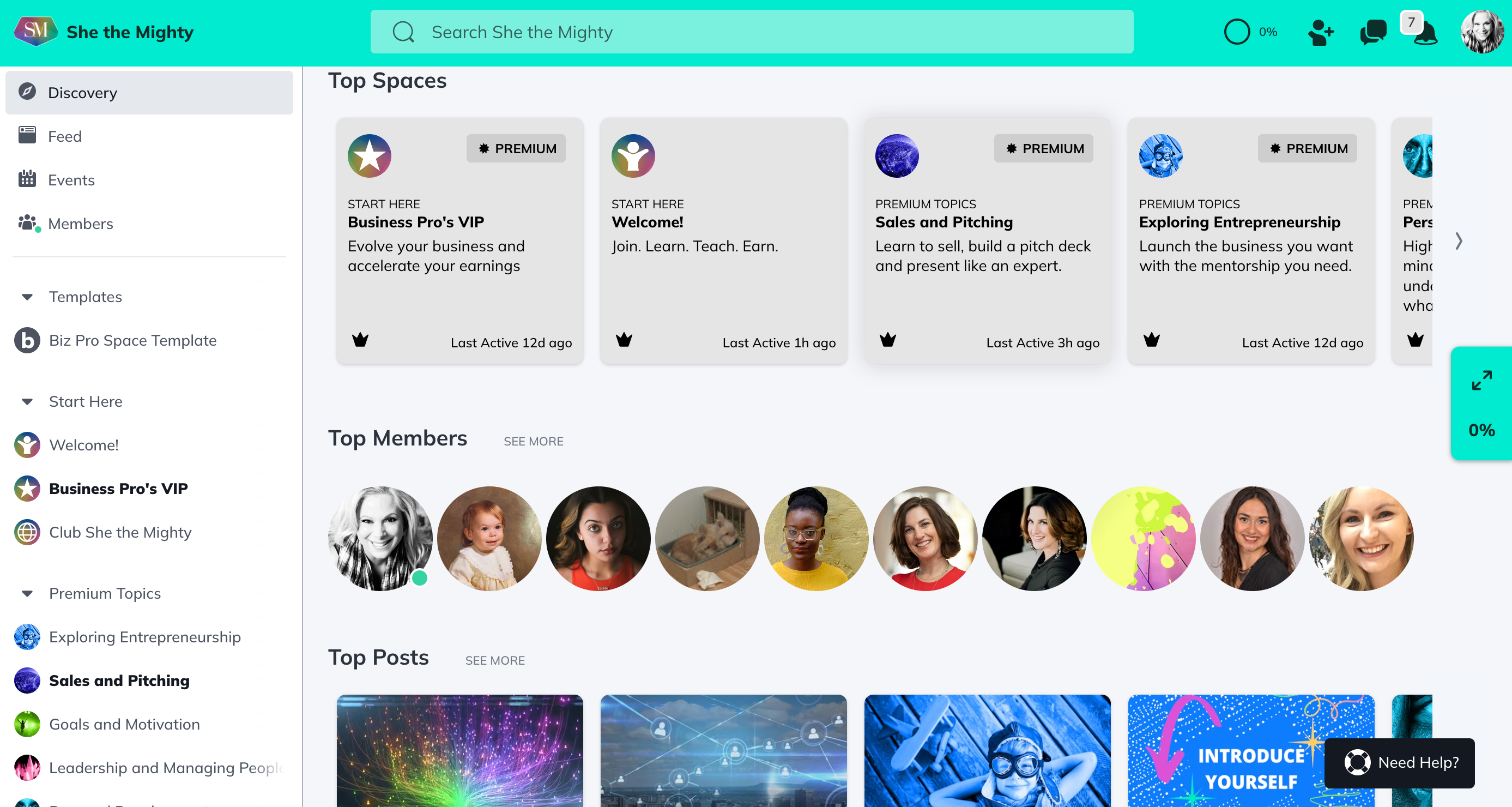
You can toggle Discovery features on and off by checking or unchecking the boxes beside them. You can re-order features by dragging and dropping them using the 3 line controls on the left of each one.
Table of Contents: A place to organize and manage content such as course material, resource libraries, or directories.
-
In the Table of Contents, you can rename the feature, name Lessons, Sections and decide if you would like a thumbnail or list view and whether or not you would like the content to be previewed. To learn more about how to customize these features, check out the article How To Create My Table Of Contents
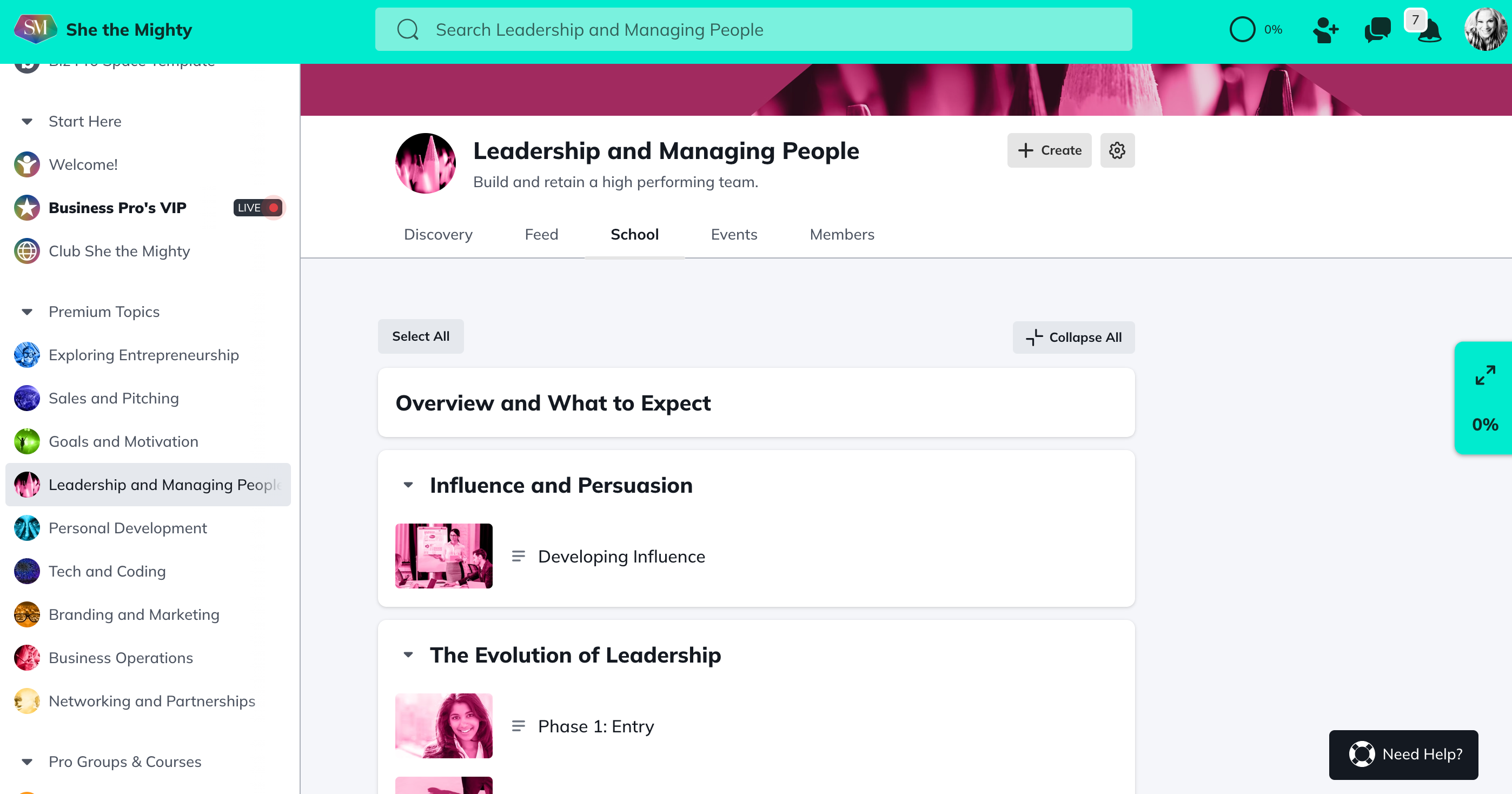
-
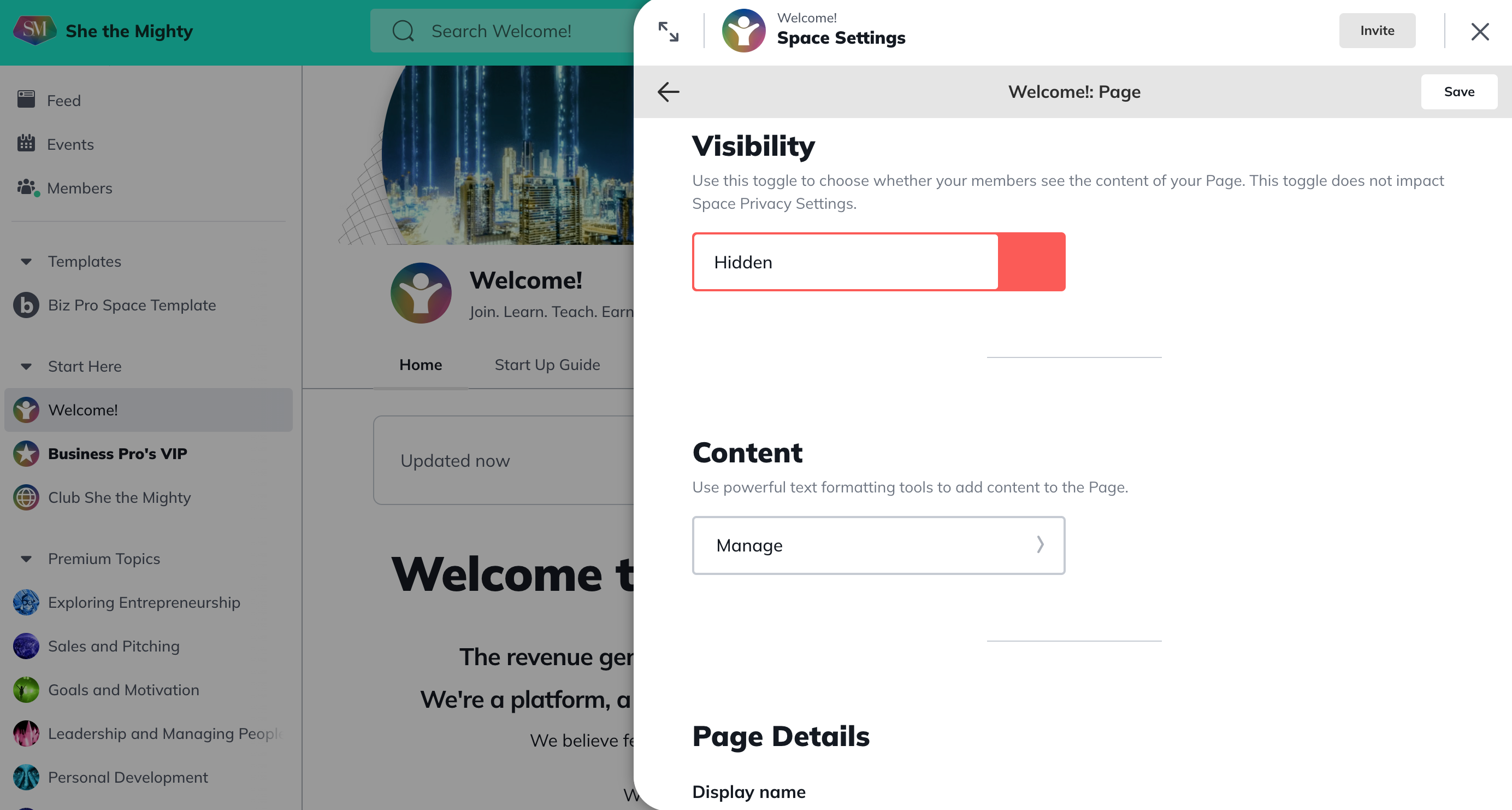
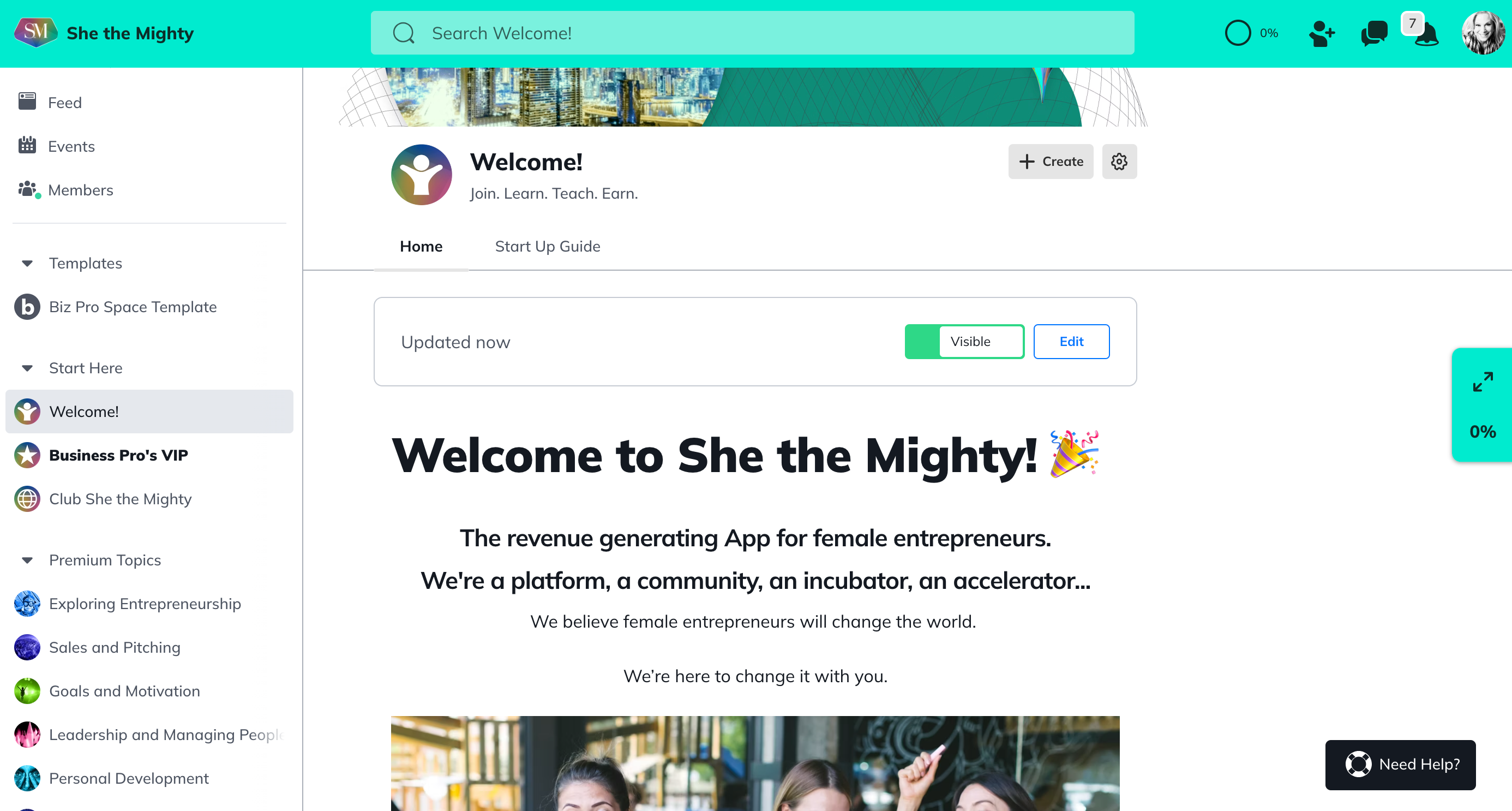
You can decide whether or not you want comments and cheers on or off for it. It will begin as Hidden and when you’re ready to make it live, you will make it Visible.
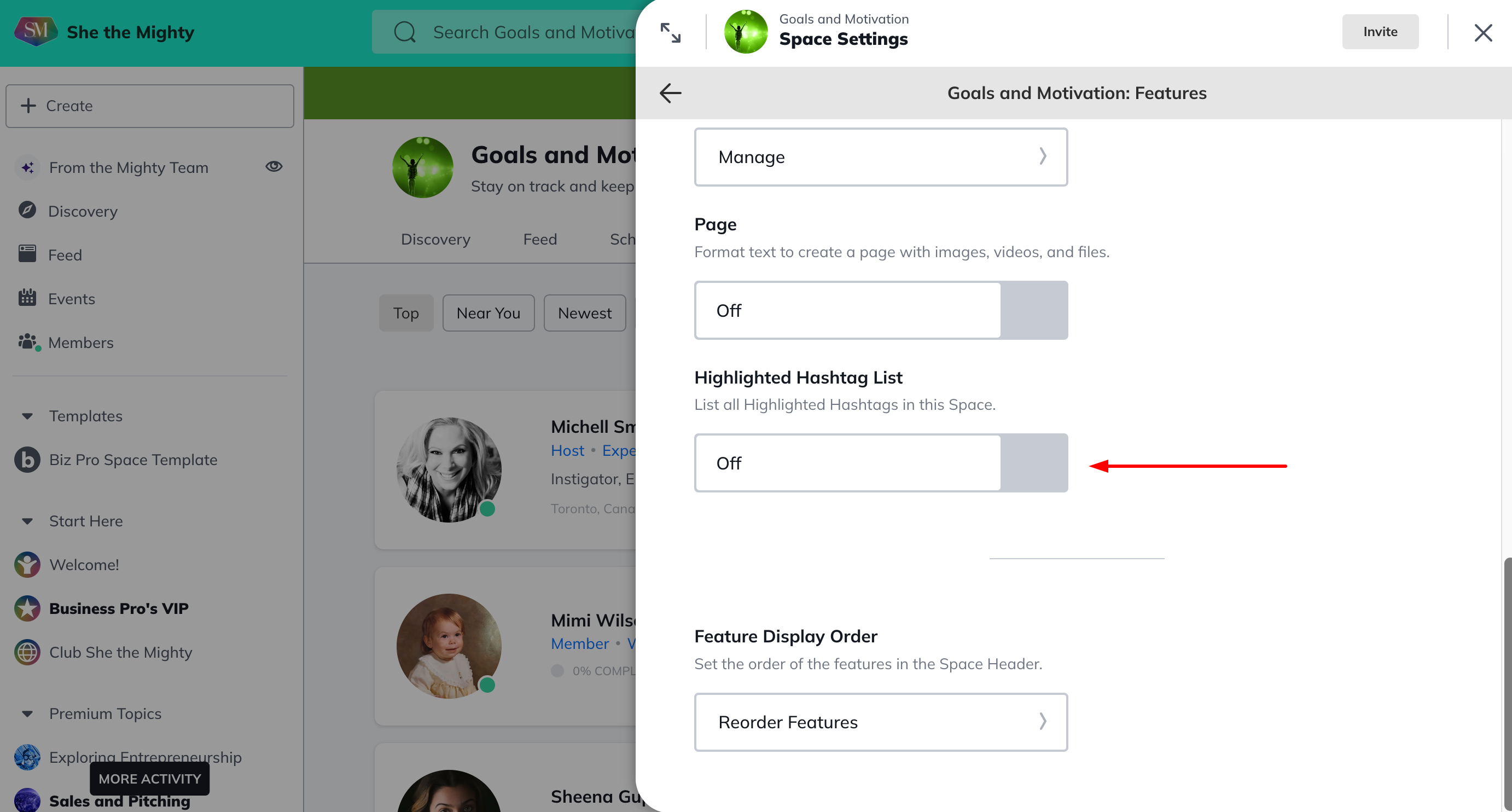
Highlighted Hashtag List: a feature that will surface a list of highlighted hashtags in a Space, go to the gear icon > Features > Highlighted Hashtag List.
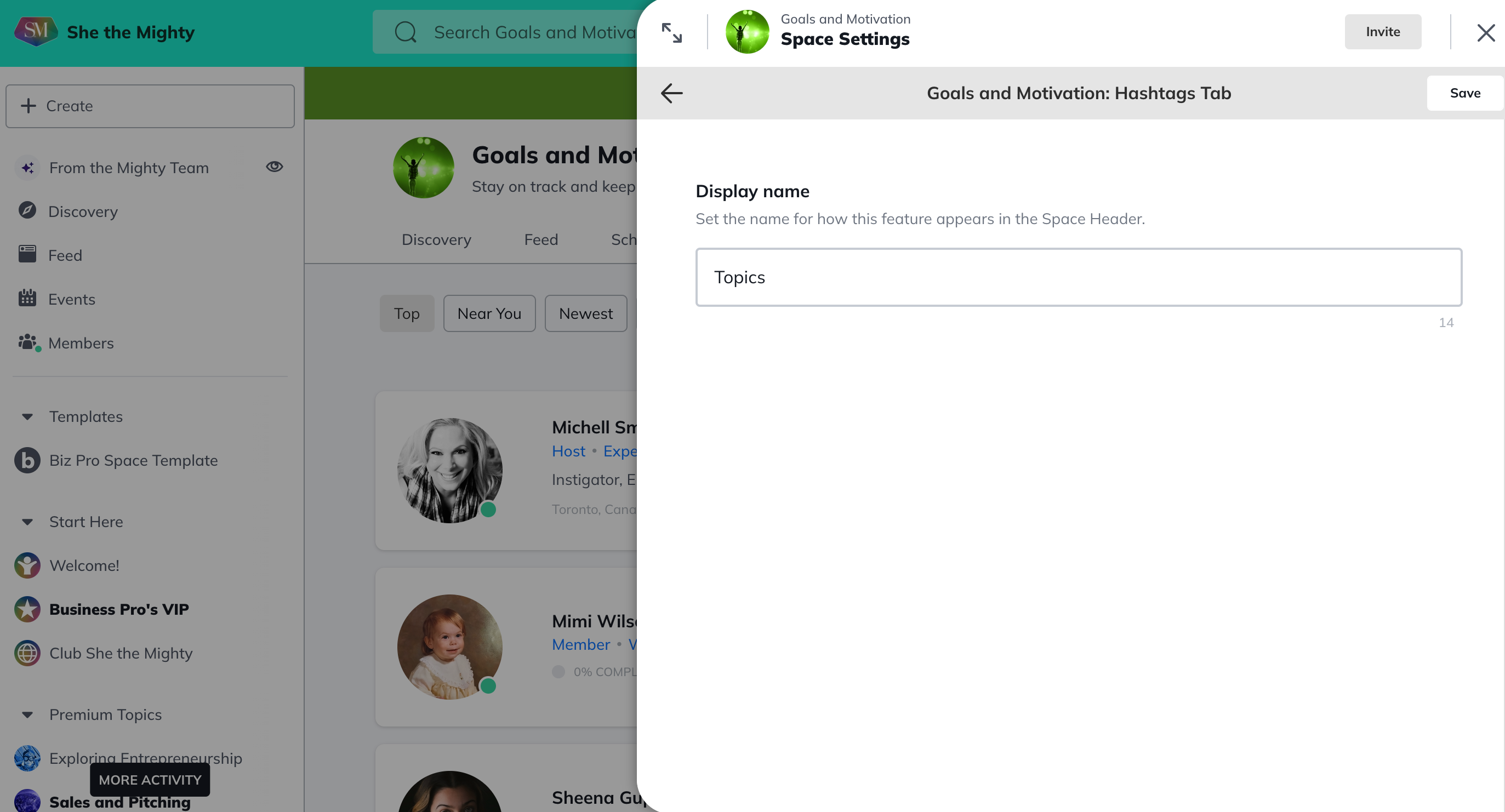
Once you toggle the feature on, you will be able to select “Manage” which will allow you to rename the feature to anything you’d like (even Topics!)
This feature is available on web and mobile. The feature will appear alongside others within the Space like Chat, Discovery, etc., and when clicked will show a list of all the highlighted hashtags in the Space.
Important note: The Feed feature will also need to be on in the Space for this feature to work.
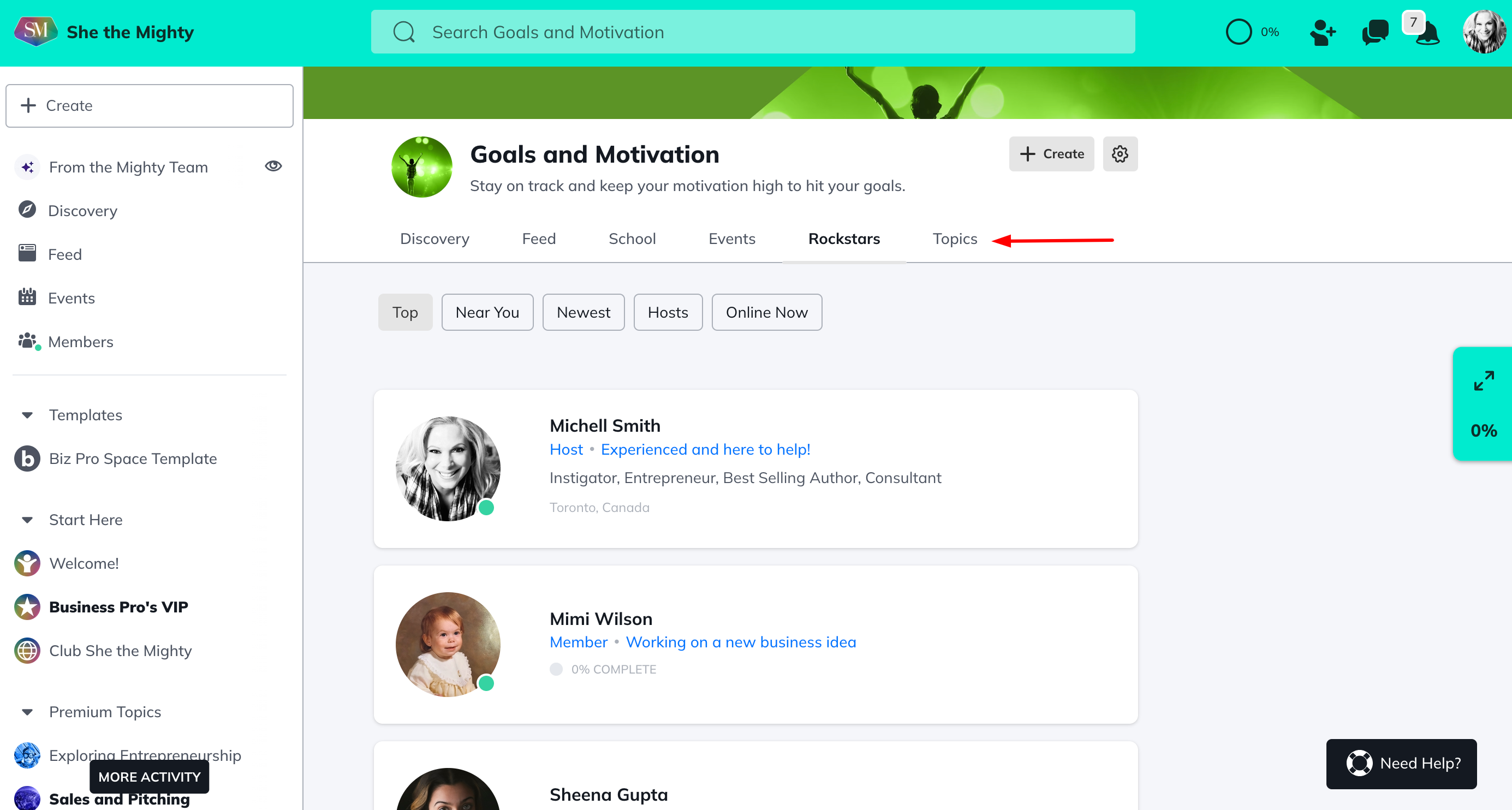
The last Control in your Features editor is the Feature Display Order, the section to Re-order Features.
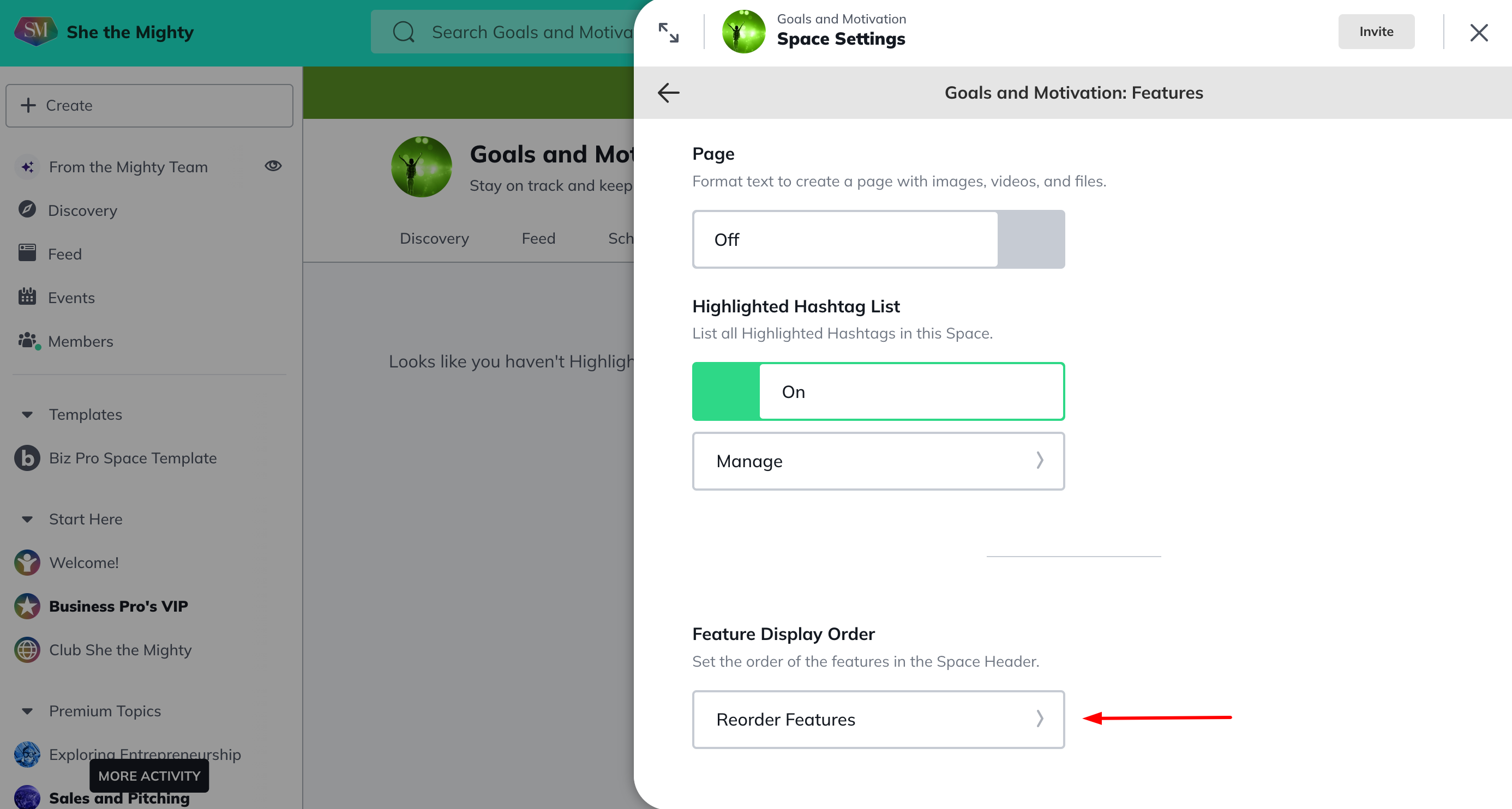
Once you’ve opened it, you can reorder your Space Features by dragging and dropping them using the three line controls to their left. It’s important to note that you can nor edit the names of each feature in this section, you do that inside of the Manage Feature section in each Feature.
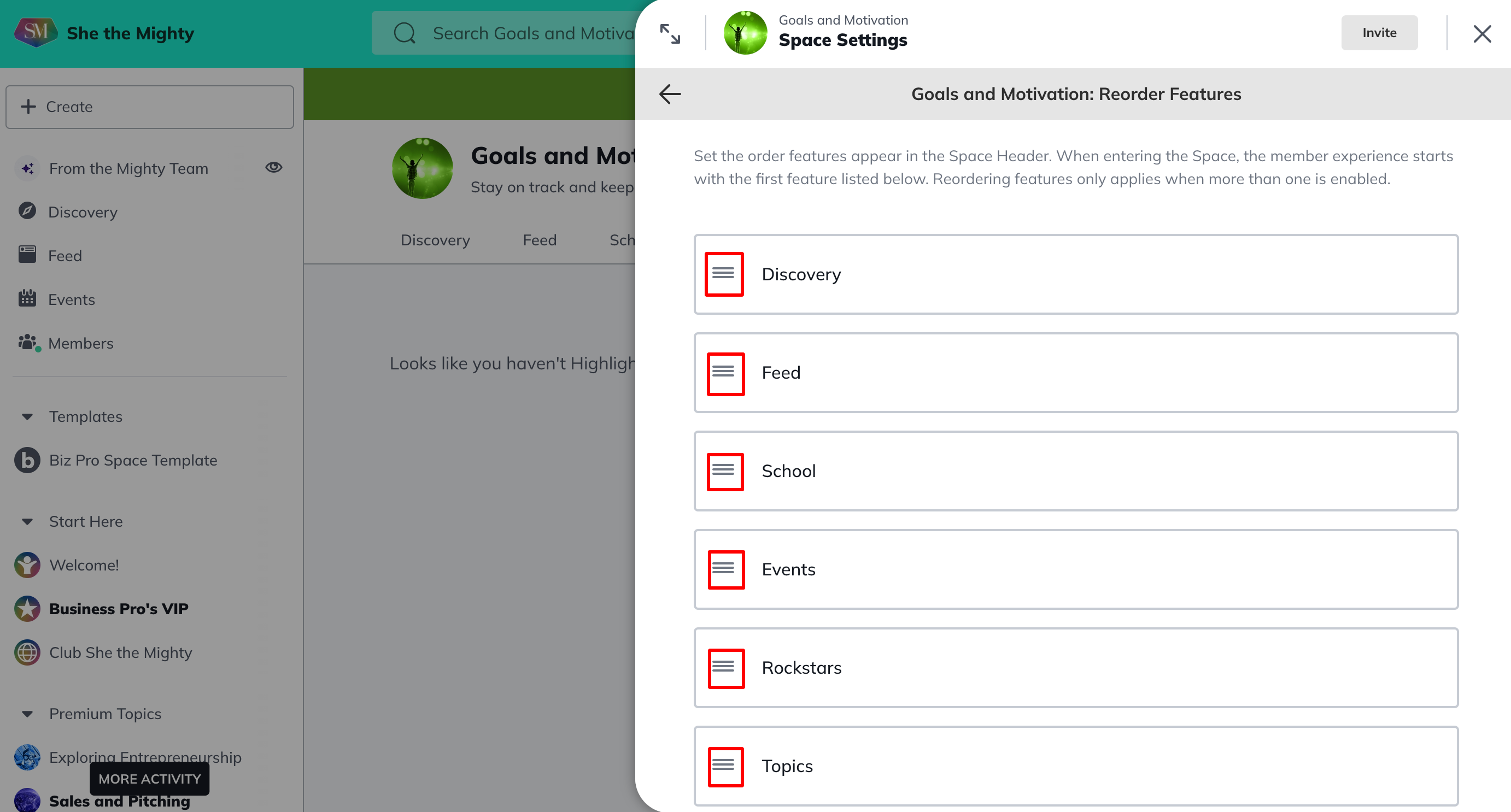
A few more things to note about your Features
Obviously all of the features you have active will show up in your Space. Each member of your Space will see all of the Features while in your Space, AND they will see items published to your Feed in their primary Feed on our App. It will push to their main news Feed so that they will see your content along with any other content from Spaces they are members of.
The same goes for Events. Any Events you publish in your Space, for members of your Space they will also appear on the Main Event Calendar on our App. Non members of your Space will not see these.
Related Articles
How Do I Brand My Spaces?
You can add a custom colour, logo and image or...
How Do I Find And Edit The About Page For My Spaces?
You can find your About Page for a Space by...
What Kind Of Space Templates Are Available?
When you join as a Business Pro Member, you get...
How Do I Add A Quiz To My Course?
Creating and viewing a Quiz as a Space Host is...
Add or Re-Order Lessons and Sections
Once you have created Lessons and Sections, you...
Recently Viewed Articles
How Does The Feed Work?
In the upper left corner, you will see some...
What Do Member Profiles Include on She the Mighty?
When a new member joins She the Mighty, they...
How Do I Set Up My Profile?
Setting up your member profile is a great first...