
How Do I Create My Courses?
You have four content types to build your Course in the Table of Contents feature:
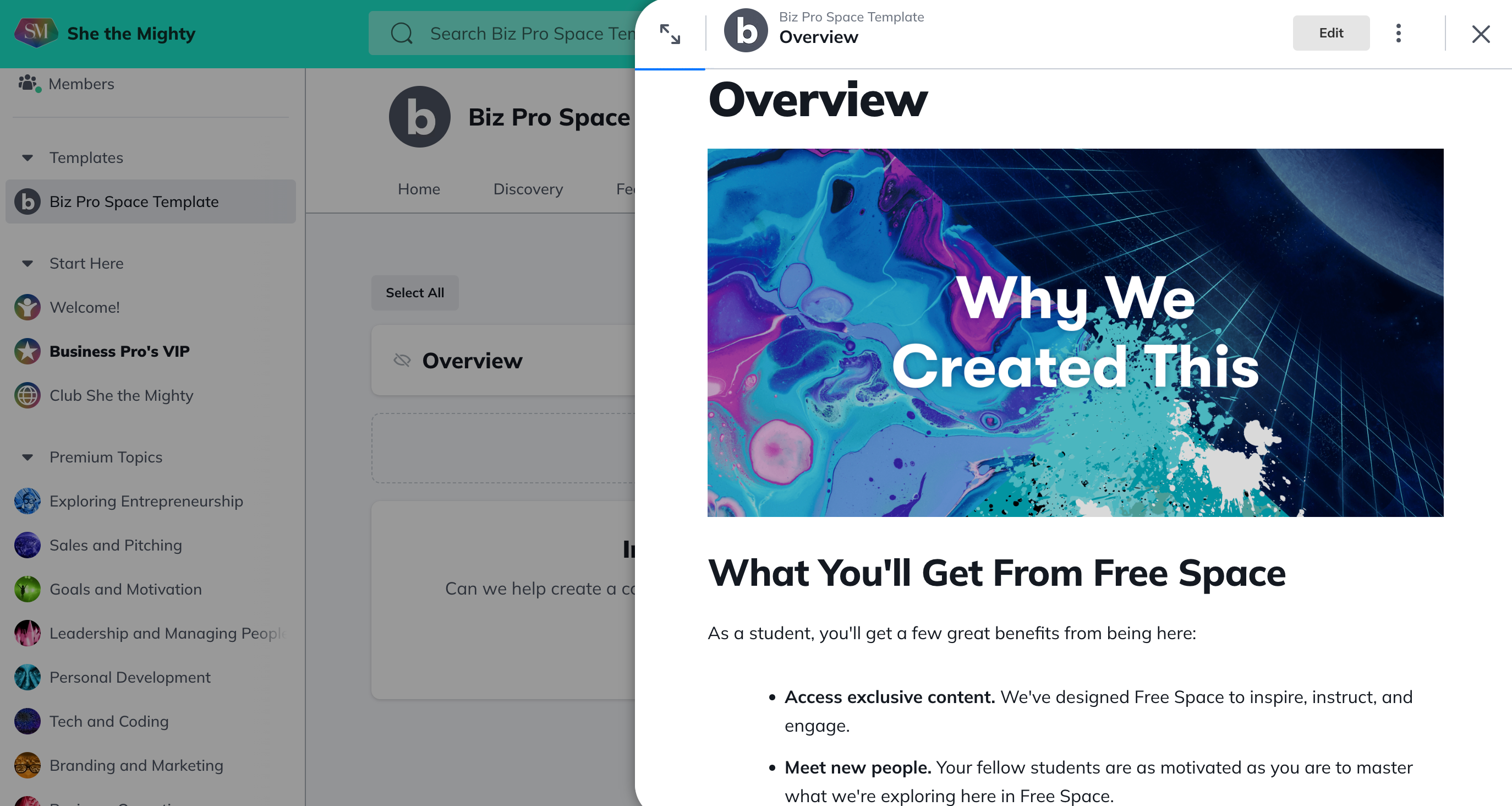
The Overview is where you add the description of and guidelines for your Table of Contents. We have a pre-built Overview template for you to publish as-is or edit and make your own. When you’ve named your Space, you will see your Space name replace the current placeholder name “Free Space” throughout the pre-built Overview.
Sections allow you to break up your content and organize similar materials in one place. Each Section serves as the mini overview for a specific part, and each section contains Lessons. You can create up to 500 Sections and/or Lessons within each Table of Contents feature you create in each of your Spaces on She the Mighty.
Lessons can stand alone or be organized into Sections.
Quizzes allow you to test the knowledge of a participant at any time throughout your course.
You can only create and edit content for your Table of Contents on web.
Where to Start
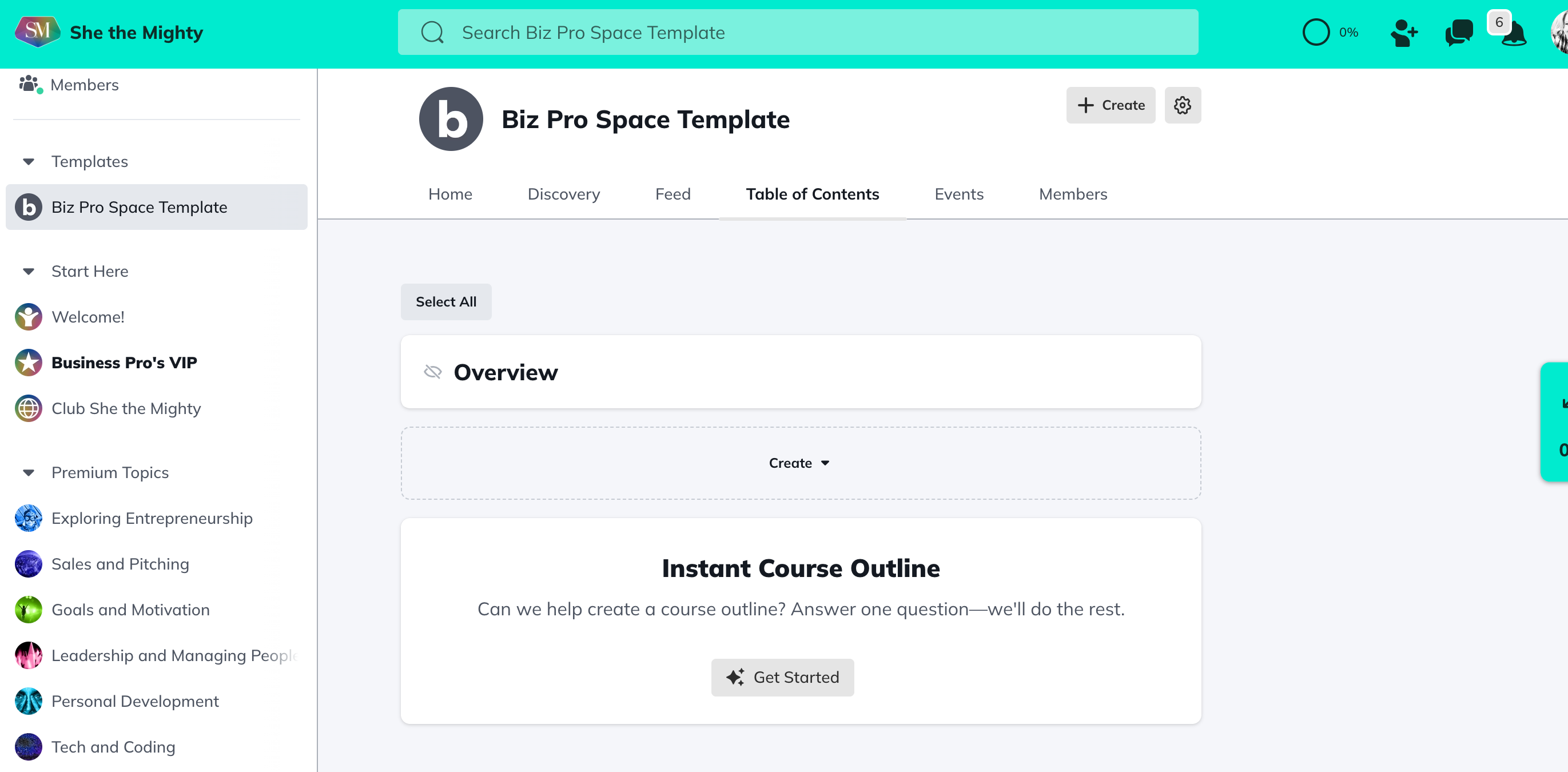
When you first open your new Space Template, you’ll see an empty Table of Contents page with the option to Add an Overview, Lesson, and/or Section.
You’ll also see our Instant Course Outline feature! This is one of our powerful AI features designed to help both you and our members build and experience a thriving community powered with GPT-4.
This feature is available on web and mobile web only. It makes building a Course outline a breeze! First select, “Getting Started”. This will take you to a prompt to enter in your idea for an outline. You can also tell it how long you want the Course to be (ie: 5 lessons) and for which level of student (ie: beginner, advanced, etc.).
If you already have a course outline, or prefer to build it yourself, awesome!
How To Add A Section
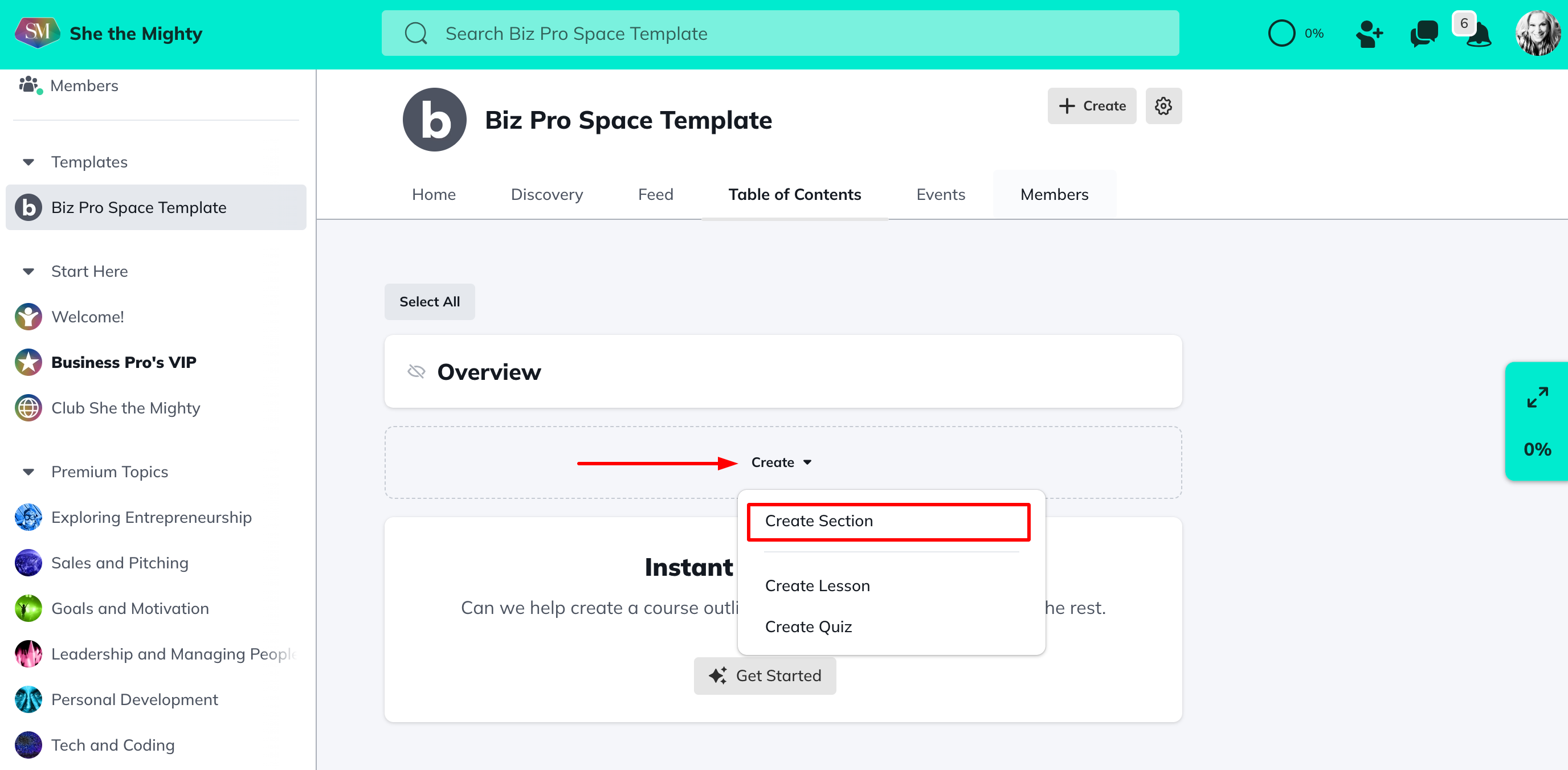
To add a Section, go to Table of Contents > Create > Add Section:
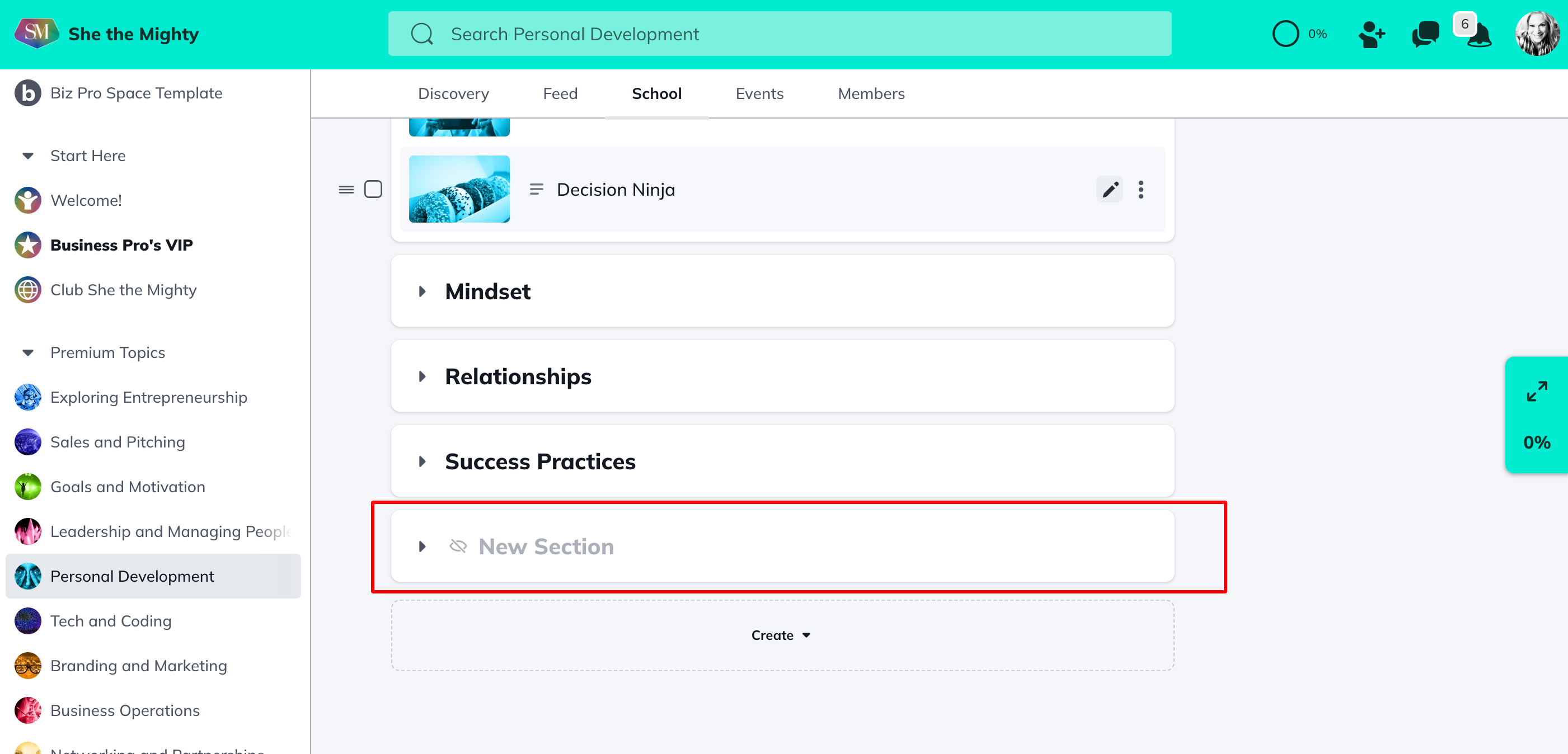
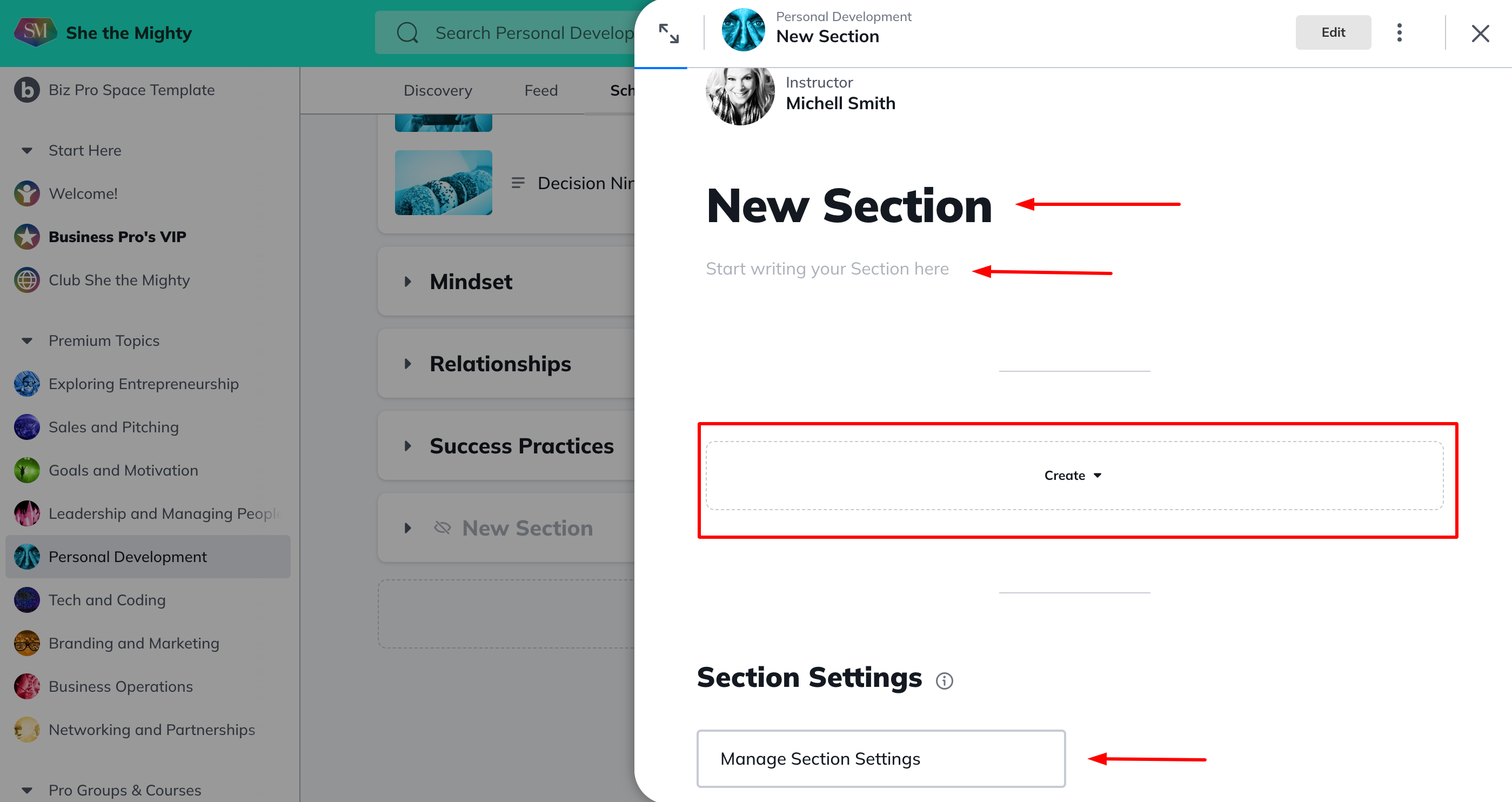
Once you have clicked to create a section a New Section will appear in your TOC. All Sections are always invisible to anyone else until you change the setting to make them visible so you can edit and build your content privately until you’re ready to share it.
To edit your Section, click into the Section bar first and you will see a content editor pop up on the right of your screen. Edit the Section Title and Section Overview here. You can edit more options of the Section in the Manage Section window at the bottom of the editor. When you are ready to add a Lesson to this Section you can click on the Create button in the same editor.
-
Add and/or Re-order Lessons
-
Make it Hidden or Visible
-
Add a Rule for Unlocking (based on finishing the Overview or another Lesson)
-
Add a Completion button
-
Edit the Thumbnail
-
Choose to Preview to visitors
The Instructor(s) listed in a Section reflect the Instructor(s) of the Lesson(s) within that specific Section. The Instructors listed in the Overview reflect the Instructors of all Lessons within the Table of Contents. The only members who can be Instructors are members who have been given Host or Moderator roles for your Spaces.
Lessons
Lessons can stand alone or be organized into Sections. You can create up to 500 Sections and/or Lessons within each Space you create in She the Mighty.
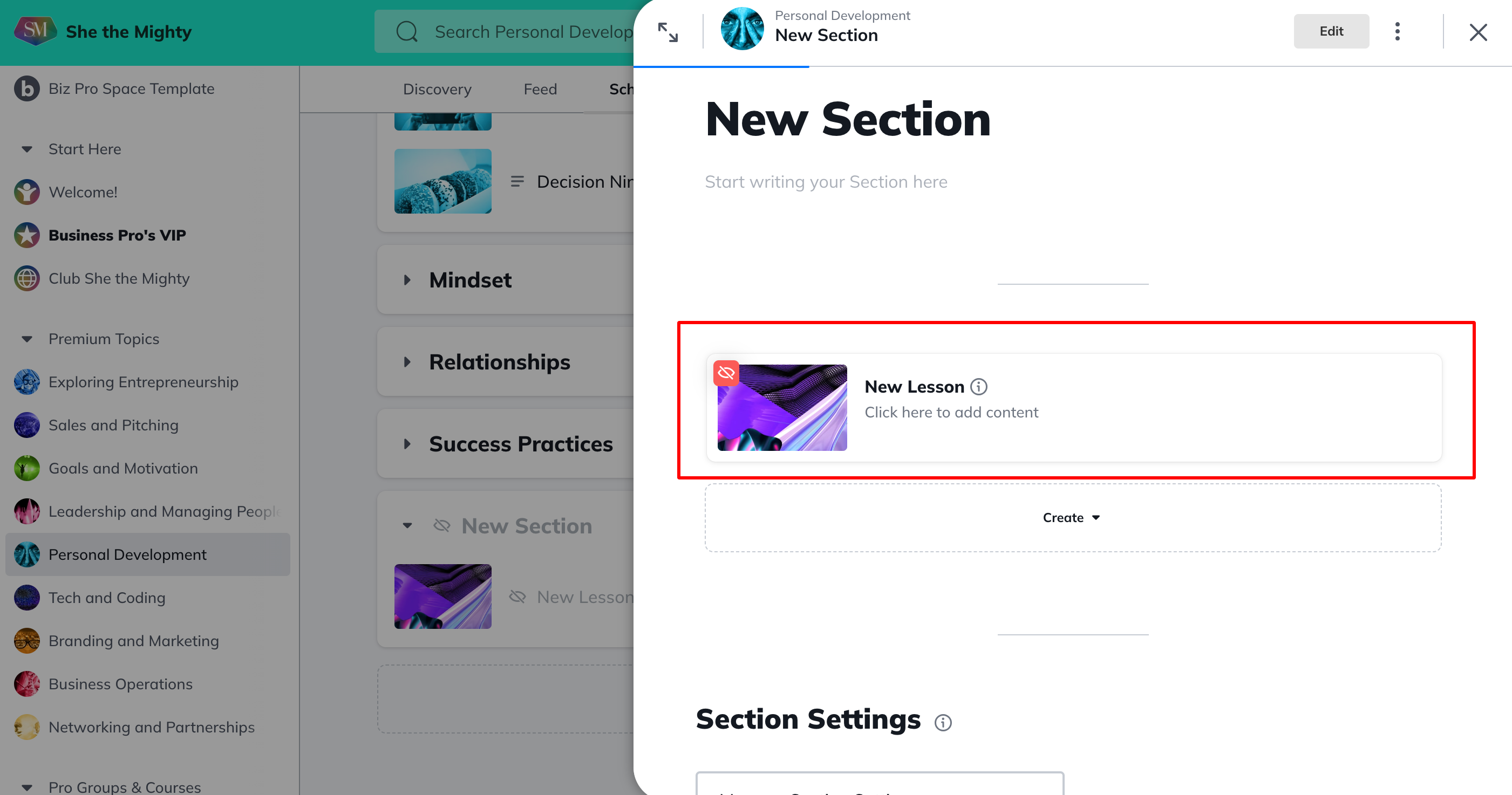
If you followed the instructions above, you will see your new Lesson appear inside of the Section you’re building. To edit and add content to this Lesson, click into the Lesson bar that has appeared inside of this Lesson.
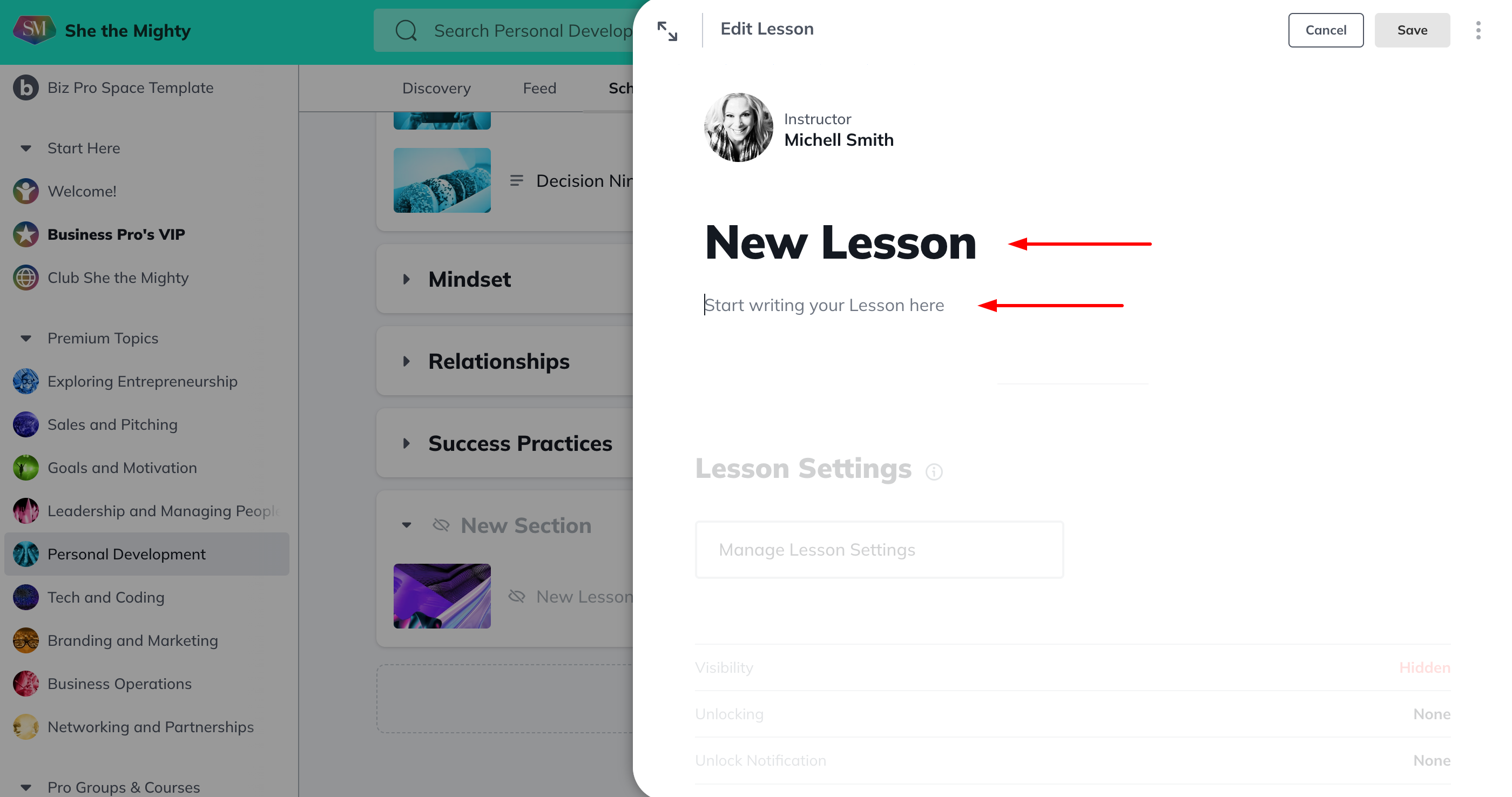
Once you open the editor, you can add content to your Lesson. You can add your heading and start adding text by clicking into the proper fields. Don’t forget to save your changes before you exit.
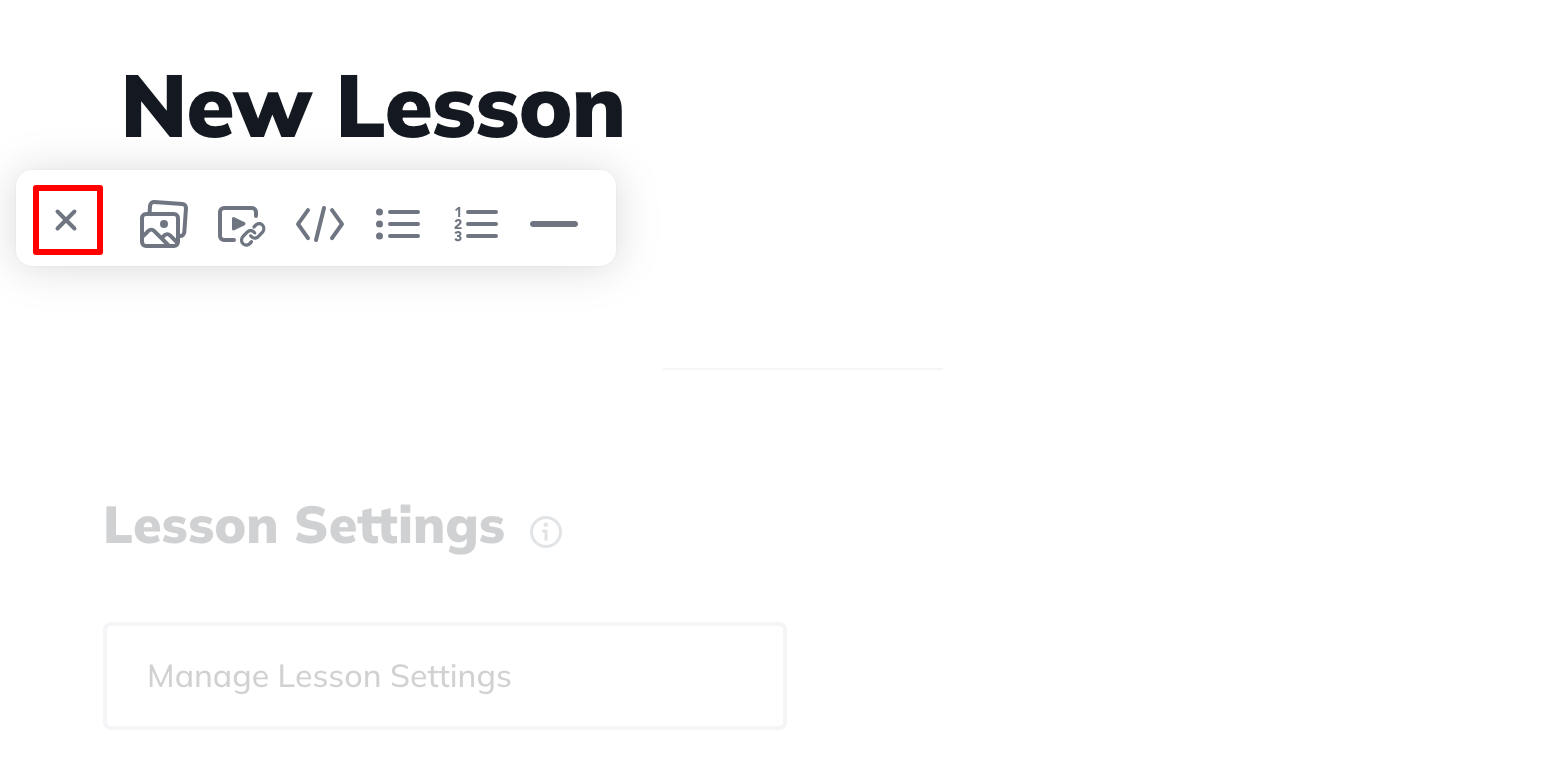
To add images, GIF’s, videos, bulleted or numbered lists or dividers to your Lesson post, click into the text editor and click on the + button on the left side to open the editor options. The first image you add to a Lesson will become the default Lesson image until you upload a Lesson thumbnail. You can upload a thumbnail in the Manage Lesson Settings section.
-
Make it Hidden or Visible
-
Add a Rule for Unlocking (based on finishing the Overview or another Lesson)
-
Add a Completion button
-
Change the Instructor
-
Edit the Thumbnail
-
Choose to Preview to visitors
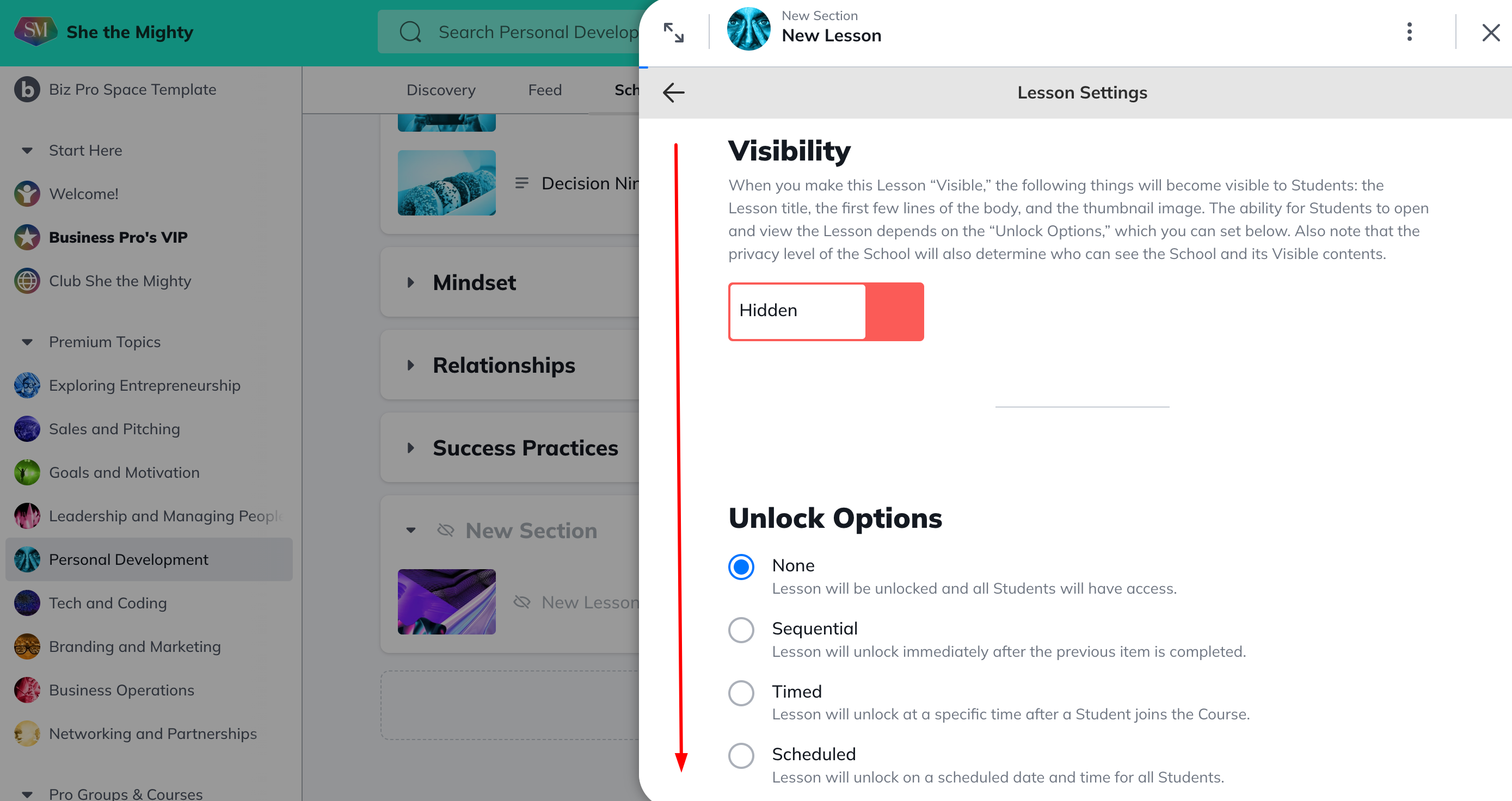
Scroll down through your settings to select how you’d like your Lesson to function and appear.
To learn more about Table of Contents Display Settings, check out this article.
Related Articles
How Do I Brand My Spaces?
You can add a custom colour, logo and image or...
How Do I Find And Edit The About Page For My Spaces?
You can find your About Page for a Space by...
What Kind Of Space Templates Are Available?
When you join as a Business Pro Member, you get...
How Do I Add A Quiz To My Course?
Creating and viewing a Quiz as a Space Host is...
How Do I Manage The Features In My Spaces?
When you first start building your Spaces, each...
Recently Viewed Articles
How Does The Feed Work?
In the upper left corner, you will see some...
What Do Member Profiles Include on She the Mighty?
When a new member joins She the Mighty, they...
How Do I Set Up My Profile?
Setting up your member profile is a great first...