
What’s the Overview?
You have four content types to build your Course in the Table of Contents feature:
The Overview is where you add the description of and guidelines for your Table of Contents. We have a pre-built Overview template for you to publish as-is or edit and make your own. When you’ve named your Space, you will see your Space name replace the current placeholder name “Free Space” throughout the pre-built Overview.
To edit the content of your Table of Contents Overview simply click the Edit button in the top right of the preview window to turn it into the editor.
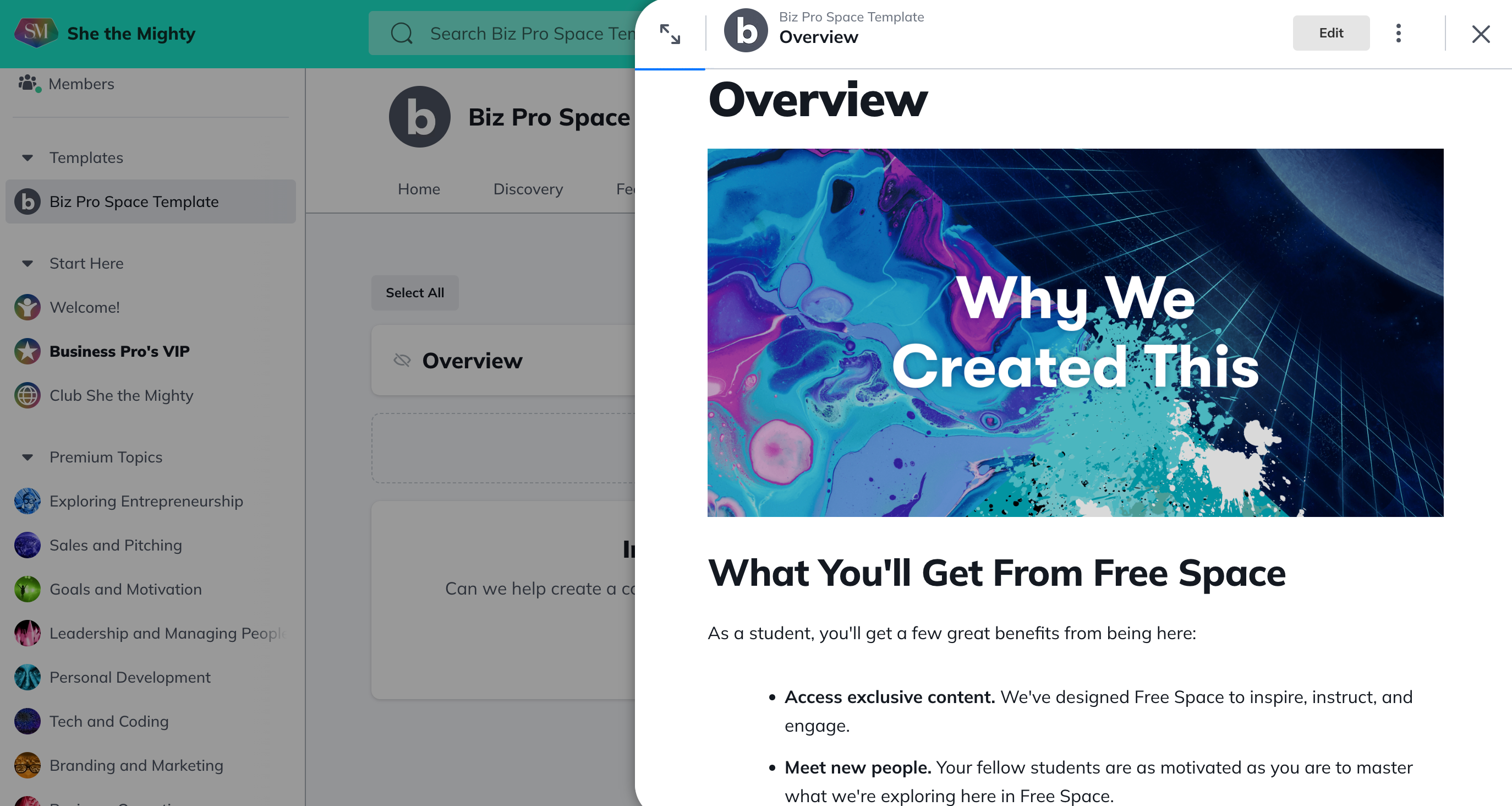
The Overview has the same features as an Article on She the Mighty. You can add a video, photos, and files.
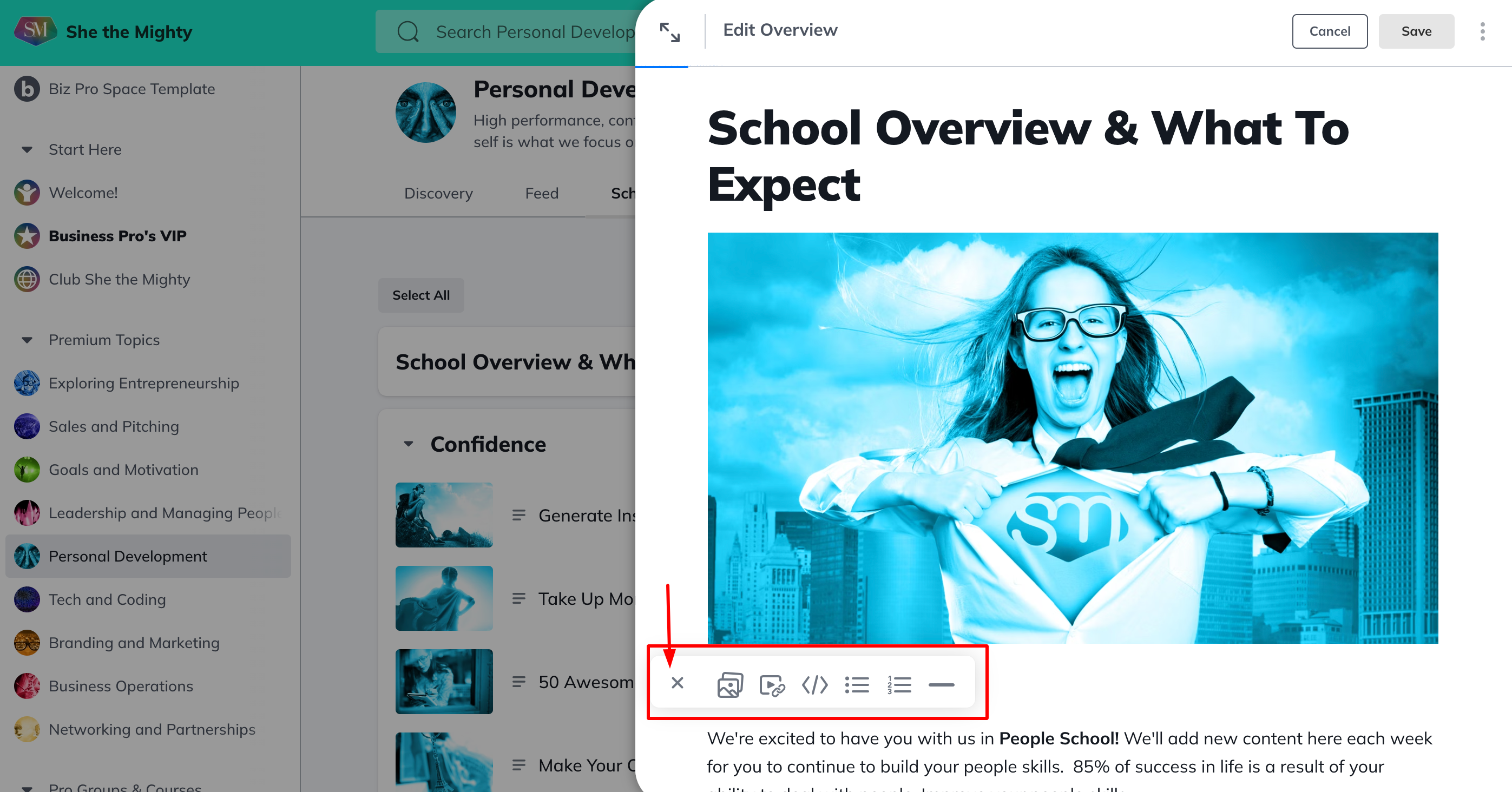
To add images, GIF’s, videos, bulleted or numbered lists or dividers to your Overview post, click into the text editor and click on the + button on the left side to open the editor options. The first image you add to the Overview will become the default Overview image until you upload an Overview thumbnail. You can upload a thumbnail in the Manage Overview Settings section.
Overview Settings
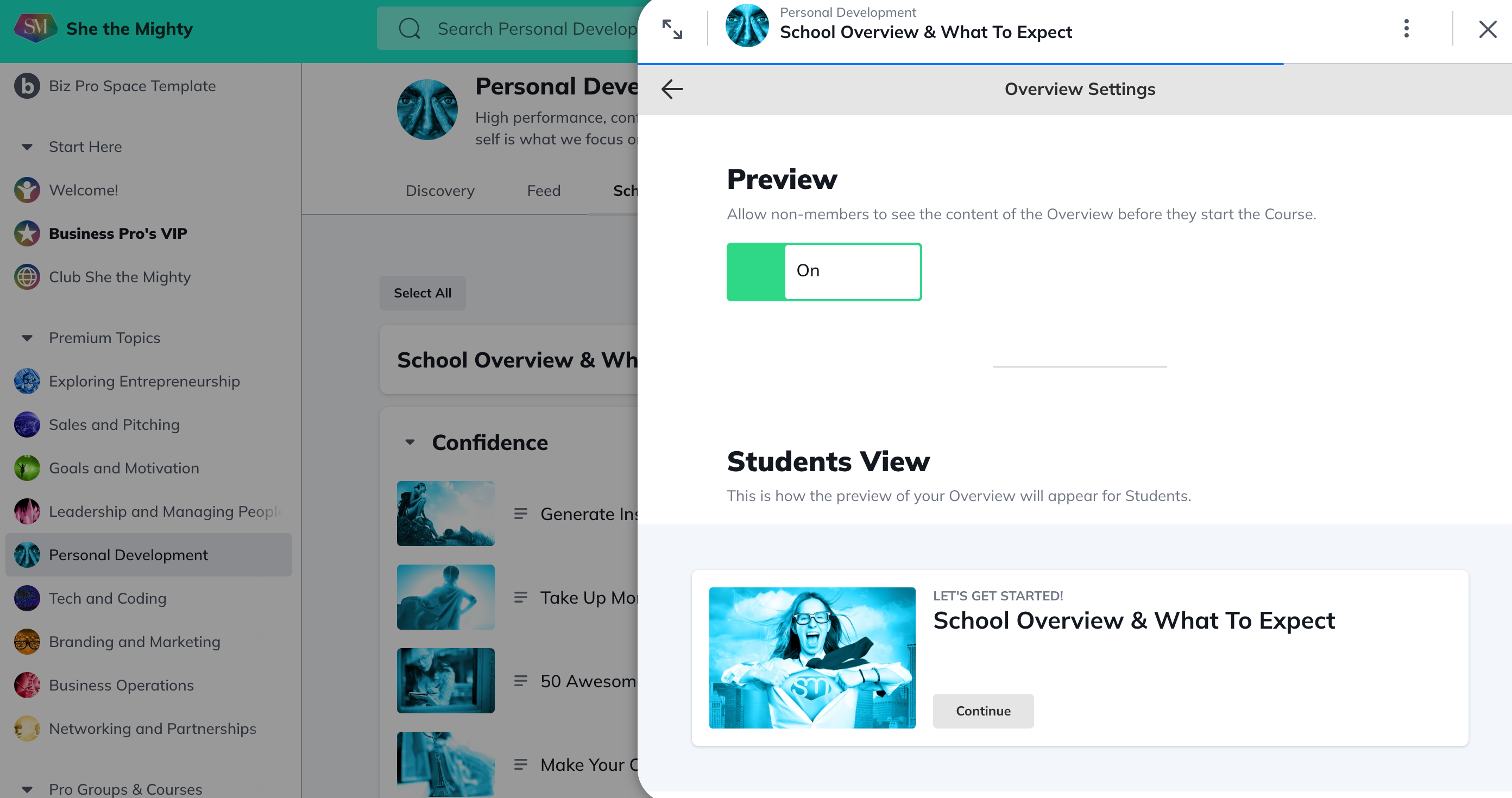
Then, at the bottom of your Overview page, you’ll see Overview Settings.

For your Overview, as well as any Lesson or Section, you can see whether the page is visible or hidden, whether the thumbnail image is the default or one you’ve customized, and whether you are enabling previewing. To change these settings, choose Manage Overview Settings.
From here, you can add your next lesson and keep building out Lessons and Sections.
To learn more about Table of Contents Display Settings, check out this article.
Related Articles
How Do I Brand My Spaces?
You can add a custom colour, logo and image or...
How Do I Find And Edit The About Page For My Spaces?
You can find your About Page for a Space by...
What Kind Of Space Templates Are Available?
When you join as a Business Pro Member, you get...
How Do I Add A Quiz To My Course?
Creating and viewing a Quiz as a Space Host is...
How Do I Manage The Features In My Spaces?
When you first start building your Spaces, each...
Recent Articles
How Does The Feed Work?
In the upper left corner, you will see some...
What Do Member Profiles Include on She the Mighty?
When a new member joins She the Mighty, they...
How Do I Set Up My Profile?
Setting up your member profile is a great first...